
External Hard Drive Repair
How to fix a failing external drive, and why recovering your data should come first.
Written by the Refindo Recovery Team · Updated
When people search for external hard drive repair, they usually mean one of three different things: a drive that won't connect, a drive that connects but won't open, or a drive that's physically failing. The fix is different for each, and there's one rule that runs through all of them. If the files on the drive matter, recover them before you try to repair it, because the common repair tools write to the drive and can overwrite the very data you're trying to save. Refindo handles the recovery half; this page explains how to do both in the right order.
Quick answer
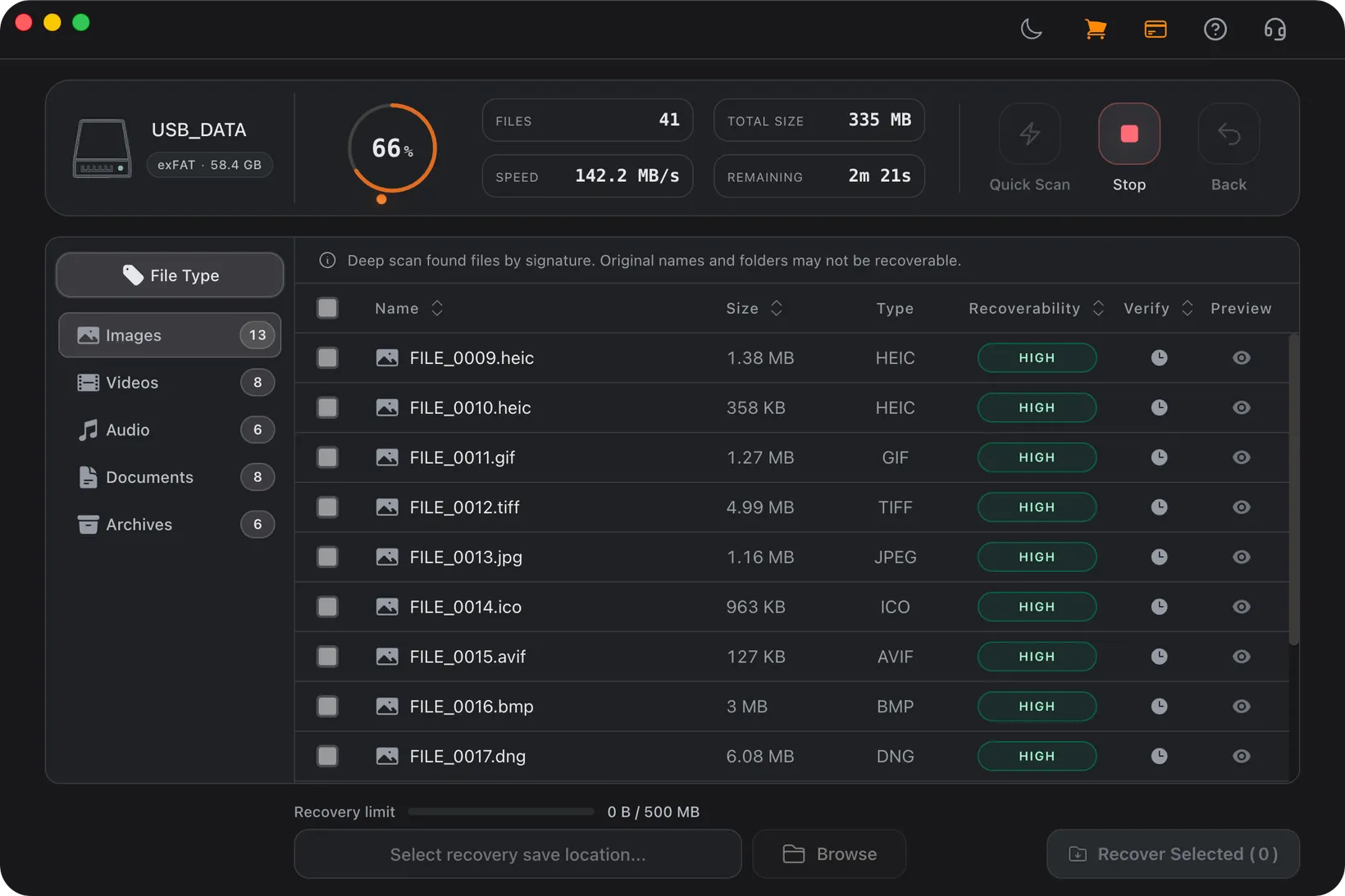
If your external drive needs repair, recover the data first. The common repair and format tools write to the drive and can overwrite the files you're trying to save. While the computer still detects it, scan the drive and copy the important files off, then repair or replace it.
What this covers
- For external drives that won't connect, won't mount, or ask to be formatted
- Explains safe repair steps versus ones that risk your data
- Recover data first, then repair the drive for reuse
- Covers Windows and Mac externals, HDD and SSD
- Knows where software ends and a repair shop or lab begins
Learn the Recovery Limits First
Recovery Workflow
- Try a different cable and a direct port; use the power adapter on desktop drives.
- If the drive is detected, recover important files to another drive first.
- Only after the data is safe, run CHKDSK, First Aid, or a reformat to repair it.
- Test the repaired drive with non-critical files before trusting it again.
- If it clicks, beeps, or never appears, stop and seek hardware help.
Best Practices
- Recover before you repair whenever the data still matters.
- Don't accept a format prompt until you have your files off.
- Recover to a separate drive, never back onto the one being repaired.
- Treat clicking, grinding, or repeated disconnects as a hardware job.
The three things "repair" usually means
Sorting your problem into the right bucket saves you from the wrong fix. The first bucket is connection: the drive doesn't show up at all. That's often a cable, a port, an unpowered hub, or, on desktop models, the power adapter, and none of it touches the data. The second is the file system: the drive shows up in Disk Management or Disk Utility but won't open, or it asks to be formatted. The data is usually fine; the structure that describes it is damaged. The third is physical: the drive clicks, grinds, beeps, or vanishes under load, which means hardware.
Only the middle bucket is a true software situation, and it's also the one where people do the most damage by reaching for repair tools too soon. The connection bucket is fixed with better cables and ports. The physical bucket is fixed by professionals, if at all. Knowing which one you're in tells you whether to swap a cable, run a scan, or stop and call someone.
- Not detected at all: suspect cable, port, hub, or power, not the data.
- Detected but won't open: file system damage, recoverable, scan before repair.
- Clicking or grinding: physical failure, a job for a shop or lab.
Why repair tools and recovery fight each other
CHKDSK on Windows and First Aid on a Mac are repair tools, not recovery tools. They make a damaged file system consistent again so the drive mounts, and they do it by rewriting structures on the disk. On a healthy-enough drive that often works fine. On a badly damaged one, those rewrites can land on top of data a scan could otherwise have recovered, and reformatting is worse, since it lays down a fresh empty file system over everything.
That's why the order matters so much. If the drive is detected and the files are important, take a read-only scan first, get what you need onto another drive, and only then run the repair tool to make the volume usable again. Repair first and recover second is the sequence that turns a recoverable problem into a permanent loss.
- CHKDSK and First Aid rewrite the disk to fix it; they are not recovery.
- On a damaged drive, repairing first can overwrite recoverable files.
- Recover to another drive, then repair the source for reuse.
Repair Paths by Symptom
Drive not showing up
Start with the cheapest fixes, because most "dead" externals aren't dead. Swap the cable, plug straight into a port on the computer instead of a hub, and on a desktop model make sure the power adapter is connected. Check Disk Management on Windows or Disk Utility on a Mac; if the drive appears there at its correct capacity, the hardware is fine and you have a file system problem to recover from, not a connection to repair. If it never appears anywhere, the repair is hardware, not software.
Drive detected but won't open or asks to format
This is the case where recovery has to come before repair. The drive is alive and the file system is the problem, so resist the format prompt and the urge to run CHKDSK or First Aid right away. Scan the drive, recover the files you need to a separate destination, and then run the repair tool or reformat to get the drive working again. Done in that order, you both keep your data and end up with a usable drive.
Drive clicking, grinding, or beeping
These are mechanical sounds, and no software or CHKDSK pass will fix them. Every time you power the drive on, a failing mechanism can degrade further, so the safest thing is to stop using it. If the data is irreplaceable, a professional repair shop or data recovery lab can sometimes open the drive in a clean environment and image it, which is something software simply can't do once the hardware is the problem.
Frequently Asked Questions
Can I repair an external hard drive without losing data?
Sometimes, but the safe order is to recover the data first. Repair tools like CHKDSK, First Aid, and format all write to the drive, which can overwrite recoverable files. Copy the data off, then repair the empty drive for reuse.
Will CHKDSK or First Aid fix my external drive?
They can fix a damaged file system so the drive mounts again, but they work by rewriting structures on the disk. If your files matter, scan and recover before running them, because on a badly damaged drive they can make recovery harder.
My external drive is not recognized at all. Can it be repaired?
First rule out the easy causes: a different cable, a direct port instead of a hub, and the power adapter on desktop models. If the drive still never appears in Disk Management or Disk Utility, or it clicks or beeps, that points to hardware, which is a repair-shop or lab job, not a software fix.
Is reformatting a way to repair the drive?
Reformatting makes a drive usable again, but it lays a new, empty file system over your data. Only reformat after you have recovered everything you need, never as a first step when the files still matter.
Start with a free scan
Check recoverable files first, then decide whether to proceed with recovery, and save results to a separate drive.