
NTFS Recovery
Recover files from NTFS drives that are RAW, corrupted, formatted, unreadable, or damaged after CHKDSK on Windows.
Written by the Refindo Recovery Team · Updated
NTFS recovery starts by leaving the drive exactly as it is. NTFS is the default Windows file system on internal disks, external HDDs, and many USB drives, and even though it is journaled, a damaged boot sector or Master File Table can still leave a volume RAW, unreadable, or corrupted while the files stay intact. If Windows can still detect the drive in Disk Management, Refindo can scan the NTFS volume, preview recoverable files, and recover them to a separate destination before CHKDSK, format, or repair rewrites the structure.
What this covers
- For NTFS drives that are RAW, corrupted, formatted, unreadable, or throwing the corrupted-and-unreadable error
- Covers internal Windows disks, external HDDs, and USB drives formatted as NTFS
- Handles damage left by an interrupted CHKDSK, including files moved into FOUND.000 folders
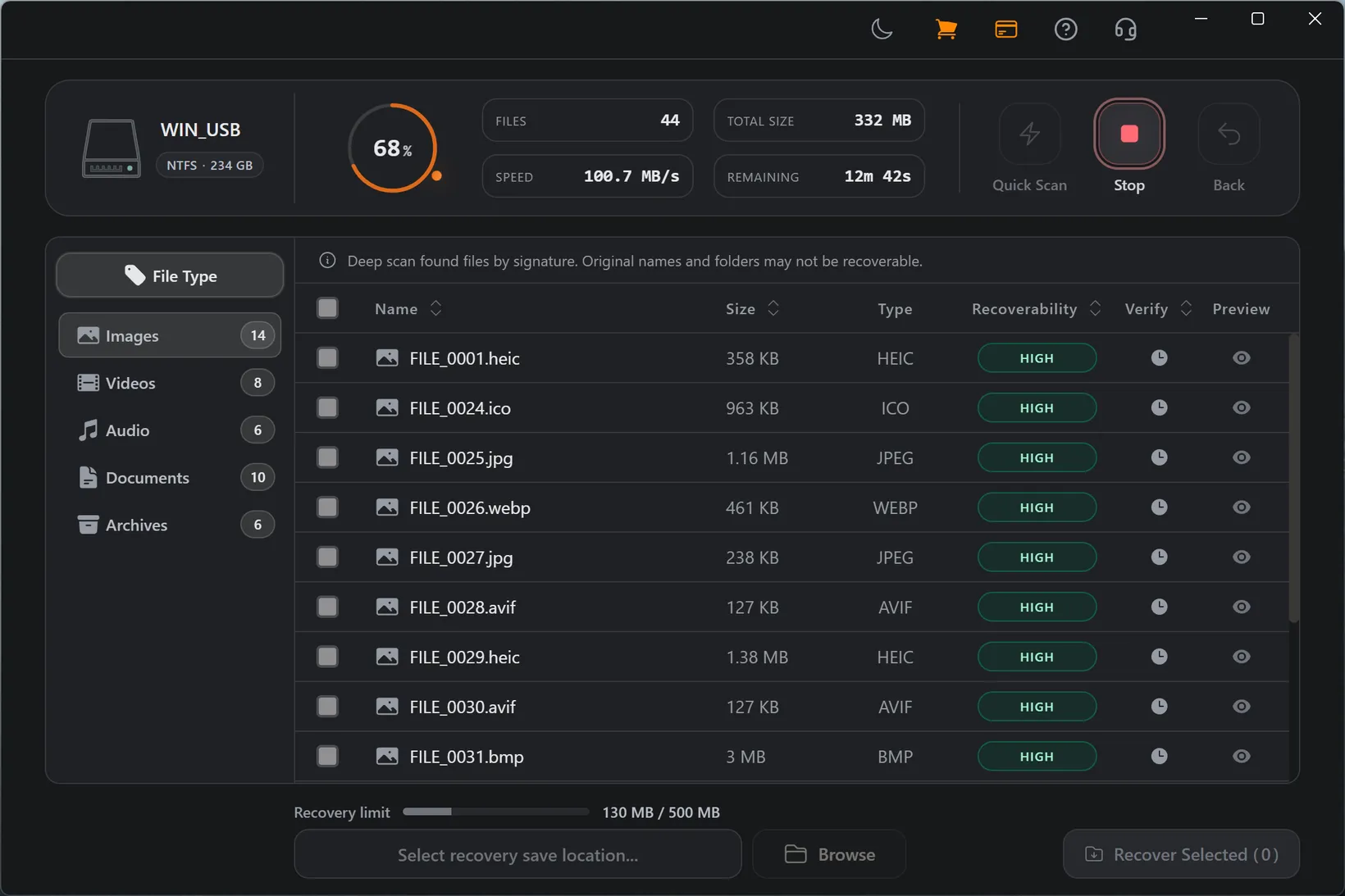
- Quick Scan for readable volumes with missing files, Deep Scan for RAW or corrupted volumes
- Preview images, PDF, text, and selected Office files before recovery
- Local-first recovery workflow with no cloud upload during scan or preview
Match the symptom before you run CHKDSK
The safest NTFS recovery path depends on what the drive is doing right now. A RAW volume, a corrupted-and-unreadable error, and a drive damaged by CHKDSK each need a different first step, so start with the exact symptom before running repair tools or accepting a format prompt.
Recovery Workflow
- Stop using the NTFS drive and cancel any prompt asking to format it.
- Check whether the drive appears in Disk Management or Device Manager.
- Run Quick Scan first when the volume is still readable and only files are missing.
- Use Deep Scan for RAW, formatted, unreadable, or corrupted NTFS volumes.
- Preview important files and recover them to another drive, not back to the source.
Best Practices
- Never accept the "needs to be formatted" prompt on a drive with files you still need.
- Avoid CHKDSK /f as a first move on a drive with important data or possible bad sectors.
- Connect external NTFS drives directly or via a powered hub before scanning.
- Recover to a separate disk to avoid overwriting unrecovered data on the NTFS source.
Why NTFS volumes go RAW or corrupted
NTFS is more robust than FAT or exFAT because it journals metadata changes, but it is not immune. The volume depends on a small number of critical structures, above all the boot sector and the Master File Table that indexes every file. If bad sectors land on those structures, or an improper shutdown, power loss, or malware corrupts them, Windows can no longer parse the file system and reports the volume as RAW or throws "the file or directory is corrupted and unreadable".
The key point is that this is almost always a metadata problem. The actual files usually still sit in their original clusters. Formatting the drive to clear the RAW state, or letting CHKDSK rewrite the MFT, is the action most likely to turn a recoverable case into a lost one.
- A RAW NTFS volume usually has a damaged boot sector or Master File Table, not lost files.
- The corrupted-and-unreadable error points to MFT or directory damage, not destroyed data.
- Cancel format prompts and scan before doing anything that writes to the drive.
CHKDSK is the double-edged tool
CHKDSK is the first thing most guides recommend, and on a healthy drive with minor errors it often helps. But on a drive with important unrecovered data or failing sectors it is risky. CHKDSK /f rewrites the NTFS structures it thinks are wrong, can detach file fragments into numbered FOUND.000 folders with generic .chk names, and forces the drive through heavy reads that a failing disk may not survive.
If the files matter, treat CHKDSK as a last step, not a first one. Scan the drive while it is still in its current state, recover what you need to another disk, and only then run CHKDSK to make the volume usable again. If CHKDSK has already run and files are missing, a Deep Scan can still rebuild many of them by content.
- CHKDSK /f rewrites NTFS metadata and can scatter data into FOUND.000 folders.
- On a failing drive, the extra reads from CHKDSK can accelerate data loss.
- Scan and recover first; run CHKDSK only after the files are safe elsewhere.
NTFS on internal and external drives
NTFS is everywhere on Windows: the system disk, secondary internal drives, most external HDDs, and many large USB drives. That breadth matters for recovery timing. On a spinning HDD, deleted data can linger a long time because nothing erases the old clusters until new writes land, which often leaves a wide window to recover. On an NTFS-formatted SSD, TRIM can clear freed blocks in the background after a deletion, so deleted data can disappear quickly.
Either way, the rule is the same: stop writing to the drive the moment you notice a problem, and recover to a different destination. A clicking, grinding, or undetected drive is a hardware fault rather than a file system one, and repeated scans can make it worse, so those cases belong with a recovery lab instead of another software pass.
- Deleted data on NTFS HDDs can survive a while; on SSDs, TRIM can erase it fast.
- Stop writing to the drive immediately and recover to a separate destination.
- Get hardware help for drives that click, grind, or are not detected at all.
Choose the Right NTFS Recovery Path
NTFS drive shows as RAW or unformatted
When an NTFS volume reads as RAW or triggers a format prompt, the boot sector or MFT is damaged but the data underneath is usually intact. Do not format it to make it accessible, since that overwrites the old structure with an empty one. Run a Deep Scan on the drive instead. It reads past the broken NTFS metadata and rebuilds files from their content, and you save everything it finds to a separate destination.
Corrupted and unreadable error
The "file or directory is corrupted and unreadable" error means Windows hit a damaged record in the NTFS Master File Table. CHKDSK is the usual reflex, but it rewrites exactly the structures a scan still needs. Take a read-only scan of the current state first, recover the affected files and folders to another disk, and only then consider repair on the source.
After CHKDSK made things worse
If CHKDSK has already run and files are gone or sitting in FOUND.000 folders with .chk names, stop using the drive immediately so nothing new overwrites them. A Deep Scan can often rebuild the original files and folder structure by signature, even when CHKDSK has detached them from the directory. Recover everything you find to a separate drive before any further repair.
Formatted or deleted on NTFS
A quick format or a deletion on an NTFS drive clears directory entries but leaves the file data in place until new writes land on top of it. Stop using the drive right away. Quick Scan gives the best shot at getting files back with their original names while the MFT survives; Deep Scan reaches more content when the directory layer is already incomplete or the volume was fully formatted.
Frequently Asked Questions
Can I recover files from an NTFS drive that turned RAW?
Often, yes. A RAW NTFS volume usually has a damaged boot sector or Master File Table, not destroyed file data. As long as the drive is still detected in Disk Management, a Deep Scan can read past the broken structure and rebuild files. Do not format the drive to clear the RAW state before scanning.
Should I run CHKDSK on an NTFS drive before recovery?
Not if the files matter. CHKDSK rewrites NTFS structures and can move fragments into FOUND.000 folders or worsen a failing drive. If the data is important, scan and recover first, then run CHKDSK only after the files are safe on another drive.
My NTFS drive says "the file or directory is corrupted and unreadable". What does that mean?
That error usually points to a damaged NTFS Master File Table or directory record, not lost data. Stop writing to the drive, avoid CHKDSK as a first move, and scan it so files can be rebuilt before any repair changes the structure.
Why does an NTFS drive ask to be formatted?
When Windows cannot read the NTFS boot sector or file system header, it shows the volume as RAW and prompts you to format it. The data is usually still intact underneath. Cancel the prompt and scan the drive before formatting.
Should I use Quick Scan or Deep Scan for NTFS?
Start with Quick Scan when the volume is still readable and only files are missing. Use Deep Scan for RAW, formatted, unreadable, or corrupted NTFS volumes, where the MFT is damaged and files must be rebuilt by signature.
Can I recover files back to the same NTFS drive?
No. Recover to a different drive. Writing recovered files back to the NTFS source can overwrite the data you have not recovered yet, which is the most common way recoverable files are lost.
Start with a free scan
Check recoverable files first, then decide whether to proceed with recovery, and save results to a separate drive.