
Data Recovery Safety
The steps that protect recoverable files before you scan, repair, or format anything.
Written by the Refindo Recovery Team · Updated
Data recovery is less about finding the right magic button and more about not making the source worse. Deletion, quick format, RAW errors, and unreadable drives often leave files recoverable, but only until new writes or repair tools overwrite the evidence. The safe path is to pause, scan read-only, preview, recover elsewhere, and repair only after the data is safe.
What this covers
- Stop writing to the source drive immediately
- Scan before format, initialize, CHKDSK, First Aid, or repair prompts
- Recover to a different drive or partition
- Preview files before trusting a large restore
- Stop software recovery when hardware symptoms appear
Recovery Safety Rules
Scan before repairing, formatting, initializing, or running tools like CHKDSK and First Aid. Repair tools write to the source.
Recover to a different drive or partition. Saving results back to the source can overwrite files still waiting to be recovered.
Stop when hardware symptoms appear: clicking, grinding, repeated disconnects, wrong capacity, or I/O errors call for a lab, not repeated scans.
Supported Recovery Scope
These safety rules apply to the local drives and removable media Refindo supports. They do not make physically failing hardware safe to keep scanning.
Supported devices
Supported file systems
Preview and recovery support
- Photos: preview JPG, PNG, TIFF, WEBP, HEIC, HEIF, AVIF, and DNG
- Camera RAW: preview and recover CR2, CR3, NEF, ARW, ORF, RW2, RAF, and DNG
- Documents: selected Word, Excel, PDF, text and common office files
- Video: common clips such as MP4, MOV, MKV, and AVI
- Other files can be recovered even when preview is not available
Not supported
- iPhone, Android, messages, contacts, or phone app data
- Cloud-only recovery from Google Drive, iCloud, OneDrive, or Google Photos
- Linux-only recovery workflows
- NAS, RAID, server, VMware, SQL, or enterprise database recovery
- Hardware repair for clicking, beeping, dead, or incorrectly sized drives
Free Scan, Preview, and Recovery Limits
Refindo lets you scan and preview files before paying. The free plan includes up to 500 MB of recovery. Paid plans unlock unlimited recovery: $29 monthly, $49 annually, or $99 lifetime.
Scan, preview, and recover up to 500 MB
Unlimited recovery, billed monthly
Unlimited recovery, billed yearly
One payment for lifetime access
Prices and limits use the shared site fallback values. The app still fetches environment-specific checkout product IDs before purchase.
Recovery Workflow
- Disconnect or stop using the affected source as soon as possible.
- Avoid repair and format prompts while files still matter.
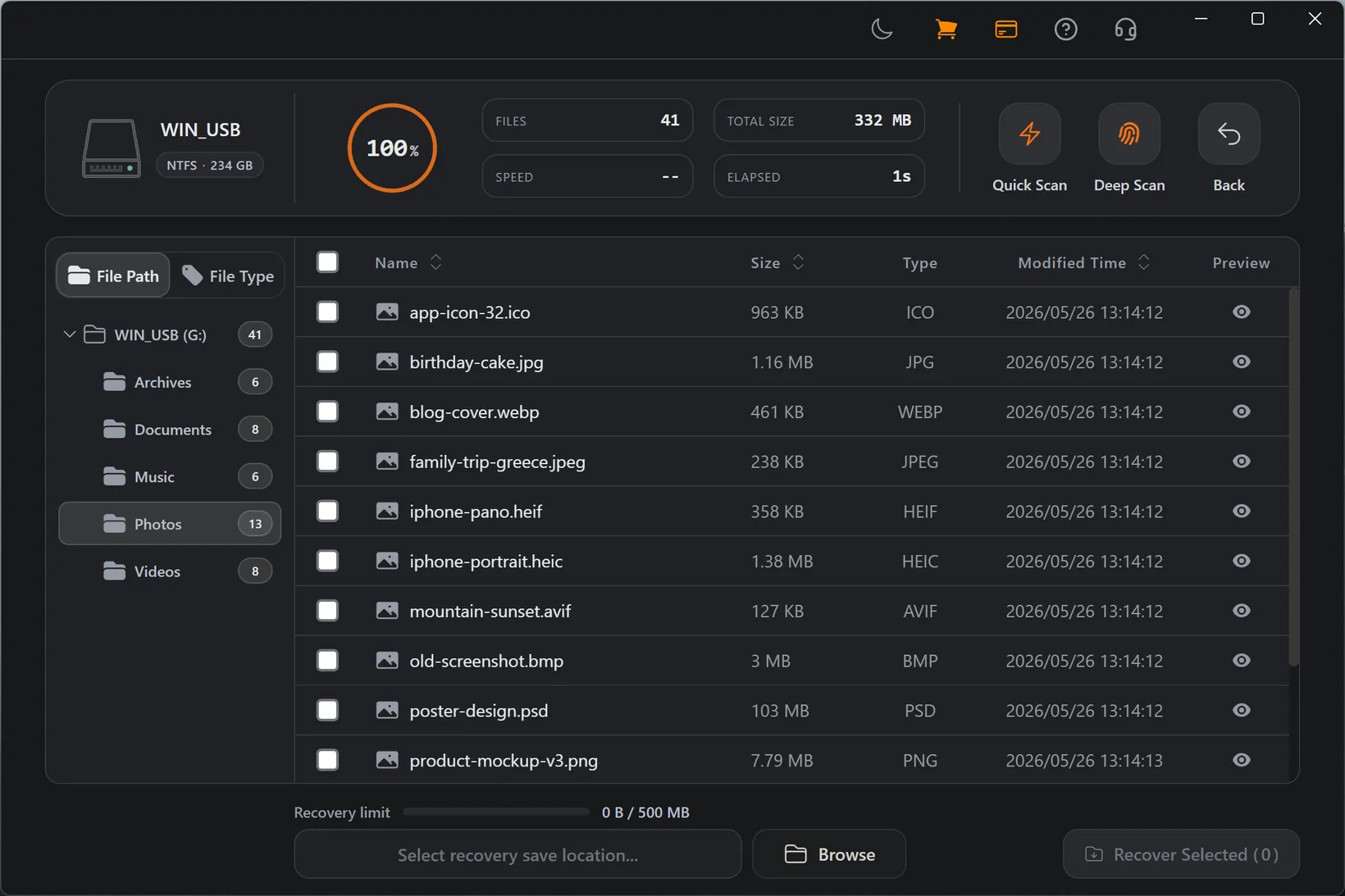
- Scan the source in its current state.
- Preview important files and recover them to a different destination.
- Verify recovered files, then repair or reformat the source if needed.
Best Practices
- Do not install recovery software on the same drive that lost files.
- Do not recover back to the source device.
- Do not repeatedly power-cycle a drive with mechanical symptoms.
- Recover the highest-value files first if the source seems unstable.
Why repair first is risky
Repair tools make a drive usable by writing new file-system structures. That is useful after your files are safe, but risky before recovery because those writes can land on metadata or file content that a scan could have read.
- Format writes a fresh file system.
- CHKDSK and First Aid rewrite damaged structures.
- Initialize creates new disk metadata.
When to stop and use a lab
Software recovery assumes the device can be read. If the drive clicks, grinds, beeps, reports the wrong size, disconnects during scans, or throws repeated I/O errors, the risk has shifted from file-system damage to hardware failure.
- Stop scanning when hardware symptoms appear.
- A lab can image failing hardware more safely than repeated app scans.
- Software cannot repair broken heads, motors, controllers, or connectors.
Safe Paths by Case
Deleted files
Stop using the source and run Quick Scan first. On SSDs, act quickly because TRIM can clear freed blocks in the background.
Formatted or RAW drives
Cancel prompts and run Deep Scan before repair. The files may still be present even when the file system does not mount.
Unstable hardware
Recover only the most important files if the device still reads. If it gets worse, stop and move to a hardware recovery path.
Frequently Asked Questions
Is it safe to scan a drive for recovery?
A read-only scan is safe for a readable drive, but repeated scans on a physically failing drive can make things worse. Stop if the drive clicks, drops offline, or reports the wrong capacity.
Should I run CHKDSK or First Aid before recovery?
No. Run recovery first. CHKDSK, First Aid, format, and initialize all write to the source and can overwrite recoverable data.
Can I recover files to the same drive?
No. Recover to a different drive or partition so you do not overwrite files still waiting to be recovered.
What if the drive is physically failing?
Stop using software recovery and consider a hardware lab if the data is important. Clicking, grinding, wrong capacity, and repeated disconnects are hardware warning signs.
Start with a free scan
Check recoverable files first, then decide whether to proceed with recovery, and save results to a separate drive.