
Windows Data Recovery
Recover deleted files, Recycle Bin items, formatted drives, and USB data on Windows 10/11.
Written by the Refindo Recovery Team · Updated
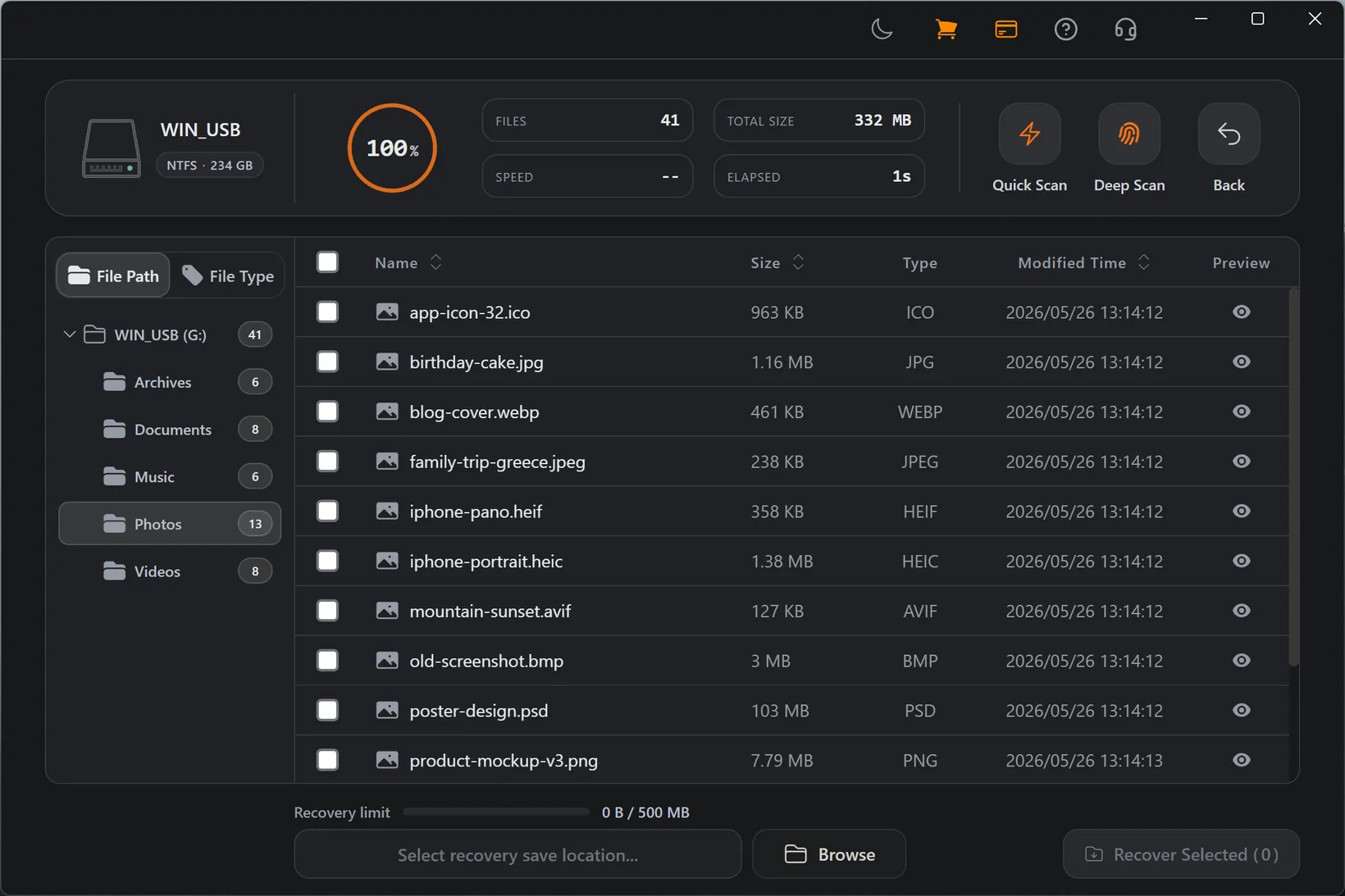
Windows data loss comes in a lot of shapes: an accidental delete, an emptied Recycle Bin, a quick format, a USB drive that turned RAW, an NTFS volume that stopped mounting. Refindo handles the common ones on Windows 10 and 11. You scan the drive first, see what comes back in the preview, and restore only the files you actually want, saving them to a different drive.
Quick answer
On Windows 10 and 11 you can usually recover deleted files, emptied Recycle Bin items, formatted drives, RAW USB sticks, and NTFS volumes that stopped mounting, as long as Windows still sees the drive. Stop writing to it and scan the drive to recover the files to a different disk.
What this covers
- Recover deleted files on Windows 10/11 (64-bit)
- Scan NTFS, FAT32, exFAT, and supported readable devices
- Recover after Recycle Bin emptying, quick format, RAW drives, and missing folders
- Works with internal drives, external disks, USB drives, and SD cards
- Preview common photos, documents, PDFs, and text files before recovery
- Quick Scan for recent deletion and Deep Scan for difficult cases
Learn the Recovery Limits First
Recovery Workflow
- Stop saving new files to the source drive or partition.
- Open Refindo and choose the drive, partition, USB drive, or SD card.
- Run Quick Scan to find deleted files and existing directory records.
- Run Deep Scan if the source is formatted, RAW, or missing important folders.
- Preview target files and recover them to another drive or safe folder.
Best Practices
- Do not install recovery software onto the same drive where files were lost.
- Do not format a USB drive just because Windows asks to format it.
- Recover to a different drive or partition to avoid overwriting source data.
- Scan the original location, not just the Recycle Bin.
- Check Disk Management when a device does not appear in File Explorer.
- Treat SSD TRIM and overwrite risk as time-sensitive after deletion.
What "deleted" really means on NTFS
Windows almost always formats internal drives as NTFS, which keeps an index of every file in the Master File Table. When you delete something and empty the Recycle Bin, Windows doesn't scrub the contents. It flags the file's MFT record as free and marks its clusters as available for reuse. The data is still sitting there, fully intact, until something writes over it. That gap between "deleted" and "overwritten" is the whole reason recovery works at all.
Since the MFT often survives a deletion, a Quick Scan can usually rebuild files with their original names and folders. The danger is what comes next. Every app you install, every download, every Windows update that lands while you keep using the drive is competing for those same free clusters. And restoring recovered files straight back onto the source is the classic own goal, because it can overwrite the very data you haven't pulled off yet.
- Scan the drive that originally held the files, not just the Recycle Bin.
- Emptying the Recycle Bin frees the clusters but does not erase the data.
- Installing apps or saving downloads to the source drive eats into recovery odds.
- Recover to a different drive or partition, and preview before restoring a large set.
When a drive turns RAW or asks to be formatted
A drive that suddenly shows up as RAW, or hits you with "You need to format the disk before you can use it," is rarely a wiped drive. Usually the file system header or boot record that tells Windows "this is NTFS" got corrupted, so Windows can no longer mount the volume. The files and their MFT records often sit untouched beneath that broken header, which is why a RAW drive can frequently be scanned and recovered in full.
The dangerous instinct here is to click "Format" or run chkdsk to "fix" it. Formatting writes a fresh file system over the old one, and chkdsk can move damaged structures around in ways that make recovery harder. So cancel the prompt, check that Disk Management still reports the right capacity (a good sign the hardware is alive), and scan before anything else. If Quick Scan comes back thin, Deep Scan reads the disk by file signature and reconstructs data even when the directory is gone.
- Cancel format prompts and avoid chkdsk on a RAW drive until after you scan.
- Confirm Disk Management reports the correct capacity before trusting the device.
- Run Deep Scan when Quick Scan does not surface the expected folders.
- Stop if the drive keeps disconnecting or throwing I/O errors, since that points to hardware.
Windows Recovery Guidance
Recovery first, repair second
Windows gives you plenty of buttons that promise to make a drive "work again": Format, Initialize, chkdsk, Repair. Every one of them writes new metadata to the disk, and metadata is exactly what a recovery scan reads. So the order that keeps your files safe never changes. Leave the drive as it is, scan and pull off what matters, and only then run the repair tools that get it healthy for reuse. Repairing first and scanning second is how recoverable data turns unrecoverable.
Match the scan depth to the failure
Quick Scan reads the surviving NTFS records, so it's the fast option and it's best at keeping original names and folders after a recent deletion. Deep Scan goes sector by sector and rebuilds files from their signatures, which is what you want after a format, a RAW state, or heavy metadata damage. The trade-off is that it groups results by file type instead of original path. The habit that works: Quick Scan first, then Deep Scan only if the files you need still haven't turned up.
Recover in batches you have checked
Don't trust a scan blindly or dump everything at once. Pull your most important files first, open them from the destination drive to make sure they're intact, then keep going with the bigger folders. If that first batch opens cleanly, the source is proving stable and the rest of the results are far more likely to be sound. If it doesn't, you found out cheaply, before sinking time into thousands of files.
Frequently Asked Questions
Can Refindo recover deleted files on Windows 11 or Windows 10?
Yes. Refindo supports Windows 10/11 64-bit workflows for scanning supported drives and previewing recoverable deleted files.
Can I recover files after emptying the Recycle Bin?
Often, yes, if the original file data has not been overwritten. Scan the drive where the files were originally stored.
Does Windows data recovery support NTFS?
Refindo supports NTFS along with FAT32 and exFAT when the source device is readable by Windows.
Can I recover files from a formatted Windows drive?
A quick-formatted drive may still contain recoverable files if it has not been reused. Scan before copying new files to it.
Can I recover files from a USB drive that asks to format?
If Windows can still detect the USB drive with the correct capacity, cancel the format prompt and scan it first.
Where should recovered Windows files be saved?
Save recovered files to another drive or partition, not back to the same location being scanned.
Can Windows SSD data always be recovered?
No. SSD TRIM and overwrite activity can permanently clear deleted data. Scan promptly and avoid using the source drive.
Start with a free scan
Check recoverable files first, then decide whether to proceed with recovery, and save results to a separate drive.