
See exactly how Refindo brings files back
Scan locally, preview recoverable files, then recover selected data to a safe destination.
One deliberately narrow path: read the affected drive, show you what can be found, let you preview the files that matter, and write results somewhere else. No hardware repair, no categories it cannot support, because recovery is safest when the tool writes as little as possible to the source.
Three steps, every time
The same path whether the data was deleted, formatted, or lost to a RAW drive.
Scan the drive locally
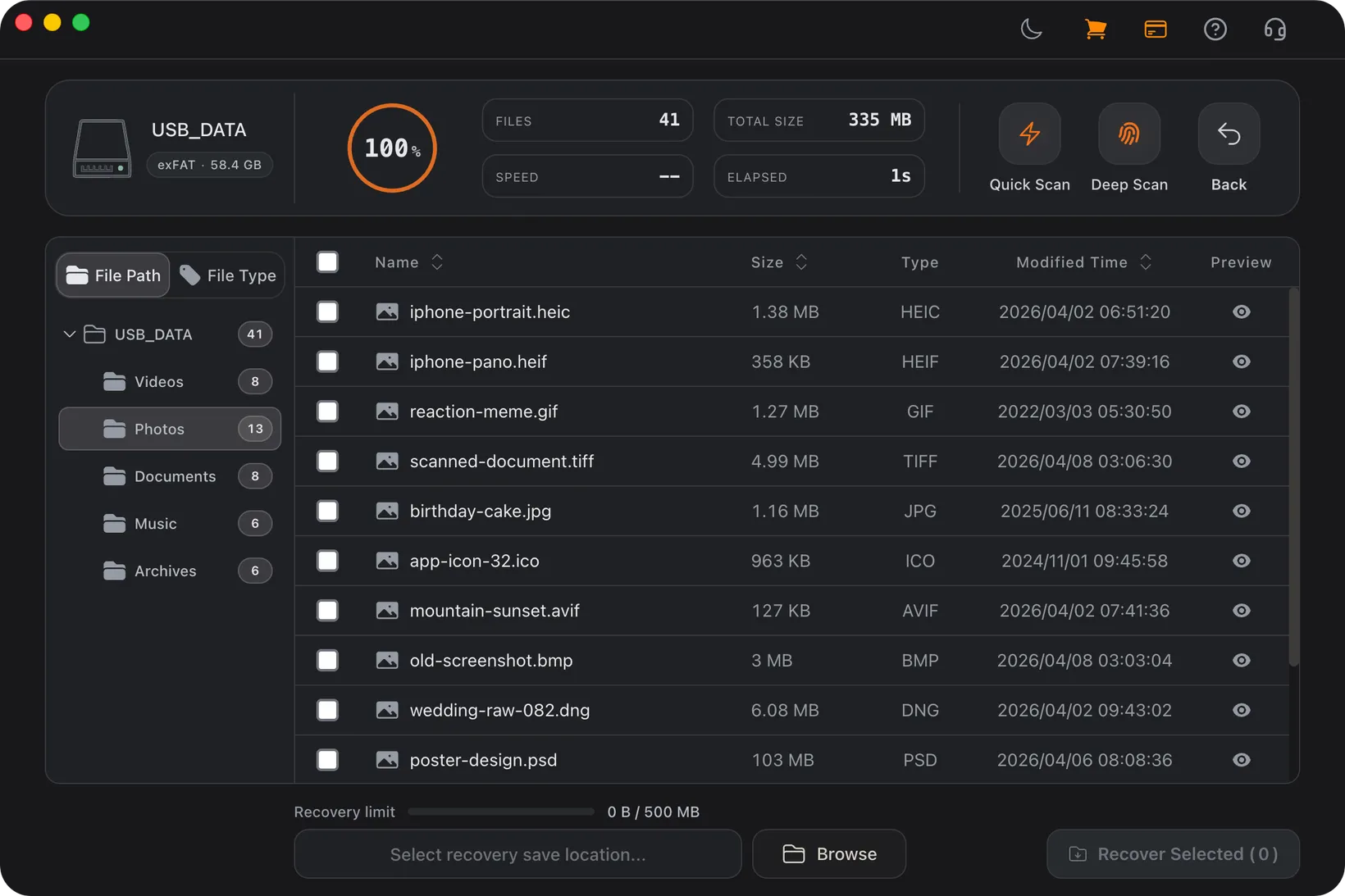
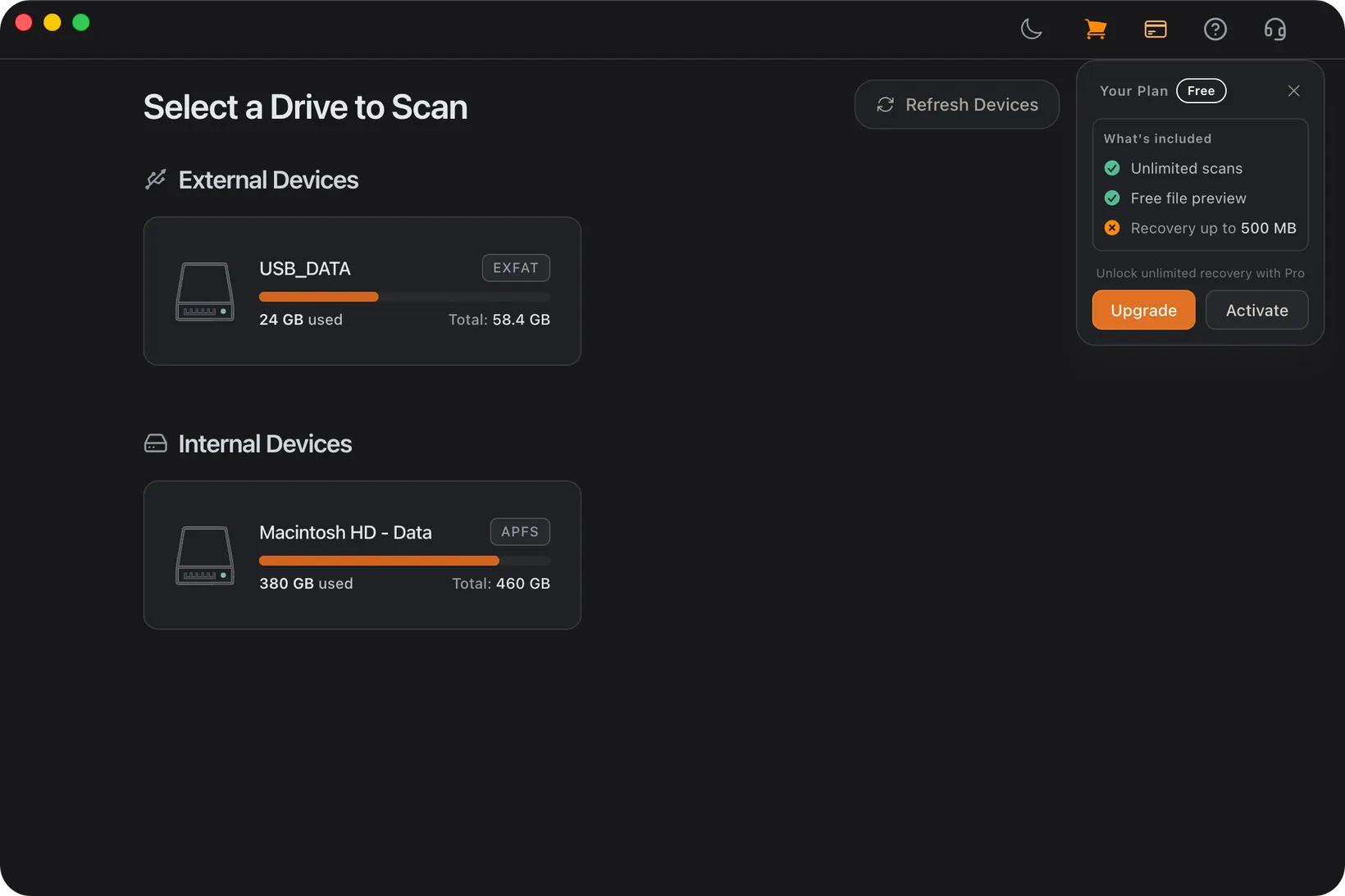
Pick the affected drive, partition, USB stick, or SD card. Quick Scan reads surviving file-system records; Deep Scan rebuilds files by signature after a format or RAW error. Both run entirely on your computer.
Preview before you recover
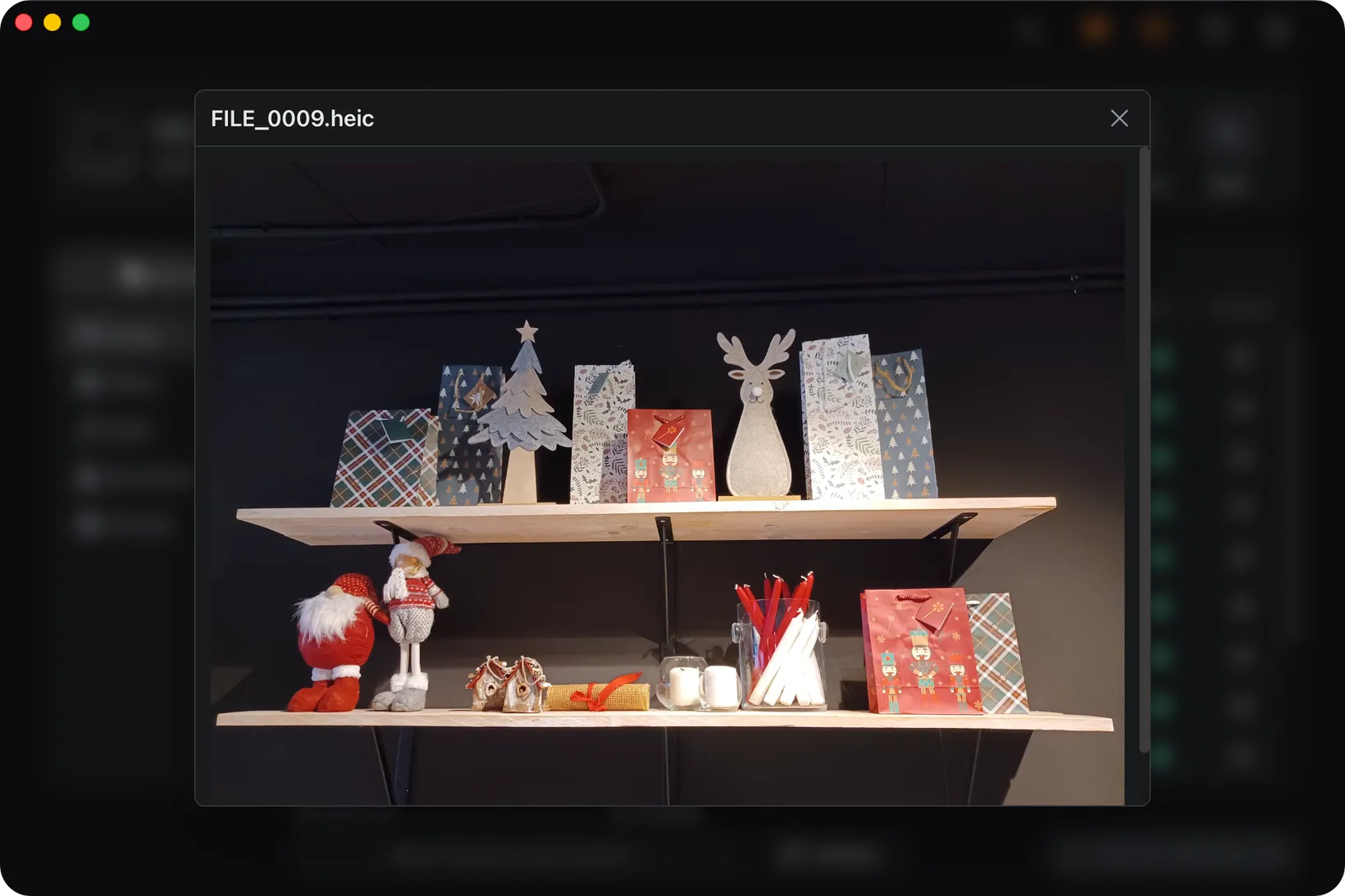
Filter the results and preview photos, documents, and video to confirm a file is actually intact, not just listed. The free scan and preview cost nothing, so you decide with evidence.
Recover to a safe place
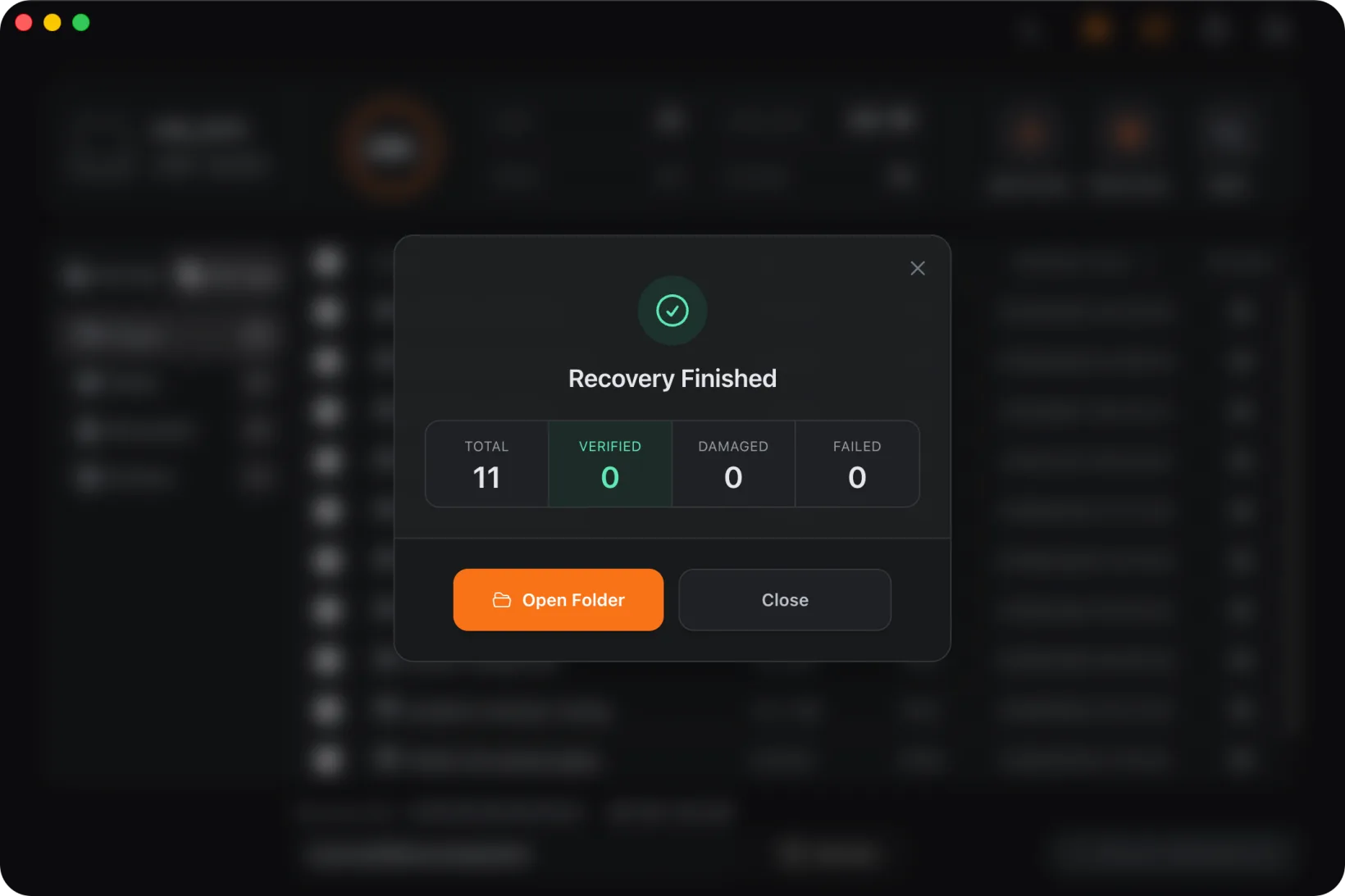
Write recovered files to a different drive or folder. Keeping output off the source means nothing gets overwritten while the rest of your files are still waiting to come back.
Two scans for two situations
Refindo tries the fast, cleaner pass first, then digs deeper only when it has to.
Quick Scan vs Deep Scan
Quick Scan
Reads what the file system still knows
When deletion is recent or the volume still mounts, the file system usually still has enough metadata to recover names, folders, sizes, and timestamps. Quick Scan reads those records first because they give cleaner results and finish faster.
- Best for recent deletion and working volumes
- Can preserve original names and folders
- Fastest way to confirm whether key files are still listed
Deep Scan
Rebuilds files from their content
After a quick format, a RAW volume, or a lost directory, Deep Scan searches the device for file signatures and rebuilds files from their content. It reaches more data, but names and folders may be missing because the directory records are gone.
- Best for format, RAW, and damaged-metadata cases
- Strong for photos, documents, and many media files
- Large fragmented video can recover incomplete, so preview matters
Product Screenshots
These screenshots show the actual local workflow: choose a source, scan, preview files, and recover selected results to another location.
Supported Recovery Scope
Refindo is intentionally scoped to local desktop recovery. These are the cases it is built to handle, and the cases it does not claim to solve.
Supported devices
Supported file systems
Preview and recovery support
- Photos: preview JPG, PNG, TIFF, WEBP, HEIC, HEIF, AVIF, and DNG
- Camera RAW: preview and recover CR2, CR3, NEF, ARW, ORF, RW2, RAF, and DNG
- Documents: selected Word, Excel, PDF, text and common office files
- Video: common clips such as MP4, MOV, MKV, and AVI
- Other files can be recovered even when preview is not available
Not supported
- iPhone, Android, messages, contacts, or phone app data
- Cloud-only recovery from Google Drive, iCloud, OneDrive, or Google Photos
- Linux-only recovery workflows
- NAS, RAID, server, VMware, SQL, or enterprise database recovery
- Hardware repair for clicking, beeping, dead, or incorrectly sized drives
Recovery Safety Rules
Scan before repairing, formatting, initializing, or running tools like CHKDSK and First Aid. Repair tools write to the source.
Recover to a different drive or partition. Saving results back to the source can overwrite files still waiting to be recovered.
Stop when hardware symptoms appear: clicking, grinding, repeated disconnects, wrong capacity, or I/O errors call for a lab, not repeated scans.
Frequently Asked Questions
Does Refindo scan locally?
Yes. Scanning, preview, and recovery run on your computer. Recovered files are saved to a local destination you choose.
What is the difference between Quick Scan and Deep Scan?
Quick Scan reads surviving file-system records and can preserve names and folders. Deep Scan reads the device by content signatures and is better after format, RAW, or metadata damage.
Can I check files before paying?
Yes. You can scan and preview recoverable files for free, and the free plan includes up to 500 MB of recovery.
Does Refindo fix hardware failures?
No. If a drive clicks, beeps, drops offline, or reports the wrong capacity, stop scanning and consider a hardware recovery lab.
Start with a free scan
Scan and preview recoverable files first, then decide. Recovered files save to a separate drive.