
Free Data Recovery Software
Scan and preview deleted files before recovery on Windows and macOS.
Written by the Refindo Recovery Team · Updated
You shouldn't have to pay just to find out whether your files are recoverable. Refindo scans supported drives for free, shows you a preview of exactly what it can bring back, and lets you recover up to 500 MB before you commit to a paid plan. It handles deleted files, quick formats, RAW devices, USB drives, SD cards, and external disks, basically anything the operating system can still read.
Quick answer
Yes, you can check whether your files are recoverable for free. Refindo scans supported drives on Windows and macOS and shows a preview of exactly what it can bring back before you pay, so you only buy once you've seen your files in the preview.
What this covers
- Free scan and preview before recovery
- Recover up to 500 MB free
- Works on Windows 10/11 (64-bit) and macOS 12+
- Supports NTFS, FAT32, exFAT, and APFS when readable by the OS
- Scan internal drives, external disks, USB drives, and SD cards
- Quick Scan for recent deletion and Deep Scan for formatted or RAW devices
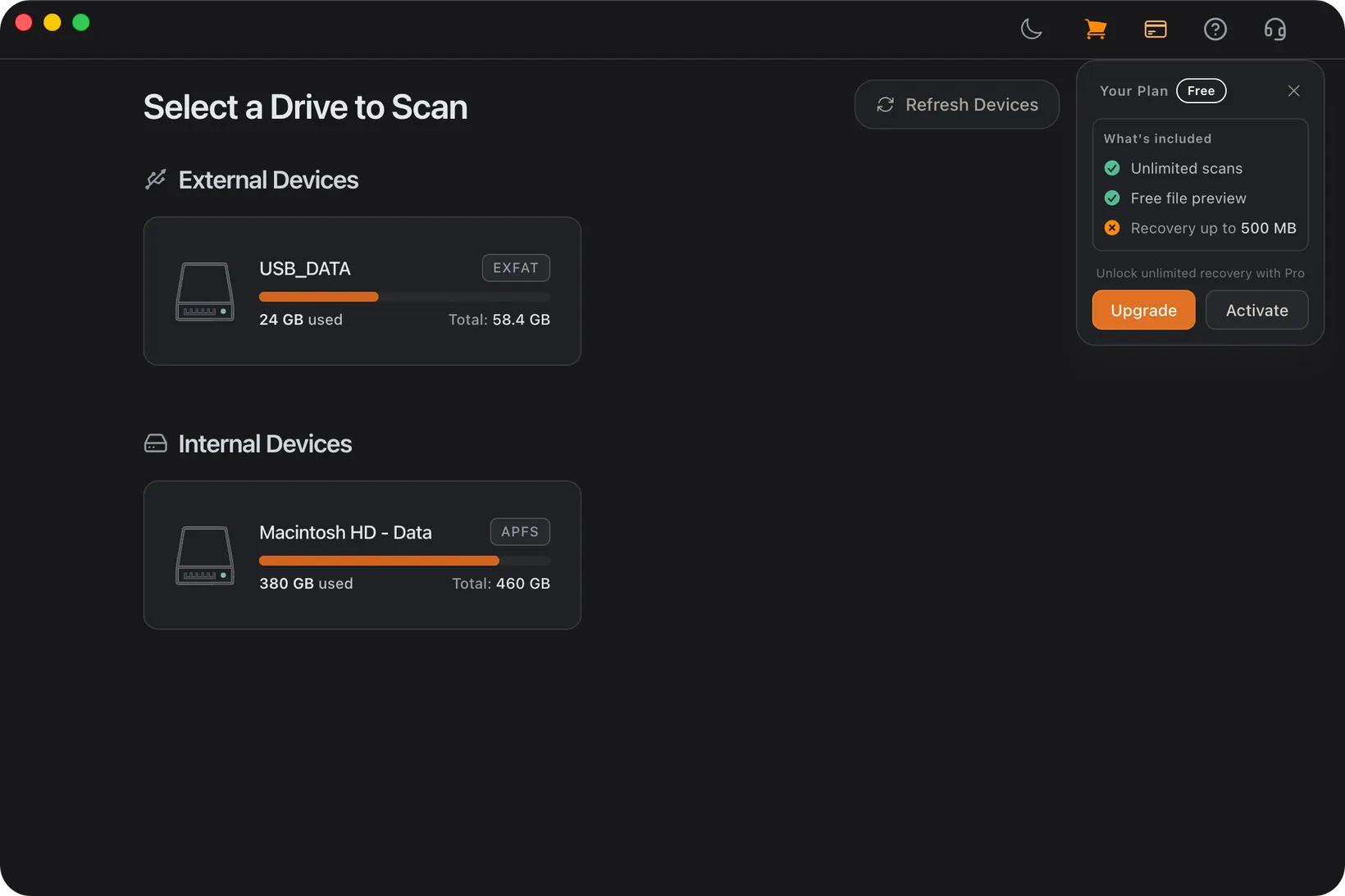
Recovery Workflow
- Stop using the source drive to reduce overwrite risk.
- Open Refindo and select the drive, USB device, SD card, or volume.
- Run Quick Scan first to check recently deleted files and remaining folders.
- Run Deep Scan if the source was formatted, turned RAW, or key files are missing.
- Preview important files to verify recoverability.
- Recover selected files to another disk or safe folder.
Best Practices
- Do not install or save recovered files onto the source drive.
- Cancel format, initialize, or repair prompts until after scanning.
- Use preview and file size checks before recovering large batches.
- Recover the most important files first when the source device is unstable.
- Avoid repeated repair attempts on RAW or unreadable drives.
- Stop software recovery if a drive disconnects repeatedly or reports the wrong capacity.
What "free" should actually mean in recovery
Plenty of tools advertise free recovery, then spring it on you at the last step that seeing your files and saving them are two separate transactions. That model asks you to pay before you even know whether anything is recoverable. The fairer way is the other way around: the scan and the preview are free, so you can confirm a specific file is there and opens correctly, and you only pay once you decide the result is worth recovering.
Refindo works in that order, scan, then preview, then recover what you pick, instead of a blind restore you just have to trust. Free recovery covers up to 500 MB, enough to bring back a batch of documents, a folder of photos, or a handful of files you really need. Upgrading is a call you make after you've seen the evidence, not before.
- Scan supported drives read-only, without writing recovery data back to the source.
- Preview photos, documents, PDFs, and text files before you commit to recovering them.
- Recover up to 500 MB free once you can see the files you need.
- Upgrade only when the volume of data you want back exceeds the free tier.
Reading the odds before you start
Software recovery isn't magic, and being honest about the odds upfront saves time. Two things matter most: the operating system can still detect the device, and the data hasn't been overwritten or cleared yet. When both are true, your chances are good. When either one fails, no software can help, and pretending otherwise just burns the window you have.
The hardest case is a modern SSD. After a deletion or quick format, the drive's TRIM command lets the controller wipe freed blocks in the background within seconds to minutes, so an SSD deletion is a race in a way a hard-drive deletion never is. A RAW or unmounted drive is the opposite: it usually still holds its data intact beneath a broken file system header and scans well, as long as the reported capacity looks right. Physical failure is the cutoff. Clicking, repeated disconnects, a capacity that makes no sense, that's where software stops and a hardware lab takes over.
- Recently deleted files beat old deletions on a drive that has stayed in use.
- A quick format is far more recoverable than a full format or overwrite.
- RAW or unmounted drives still scan well when capacity is reported correctly.
- SSD TRIM, physical failure, and repeated disconnects are where software hits its limit.
Free File Recovery Guidance
Let the preview do the deciding
A list of recovered file names tells you a tool found something. It doesn't tell you the file is whole. A photo can be half-overwritten, a document truncated, an archive corrupt, and the name alone hides all of it. So open the preview for the files you actually care about, check that they render, and let that decide things for you. It's also the cheapest way to test a drive: if the previews come back clean, the scan is trustworthy; if they're broken, you've learned the data was already overwritten without spending a cent.
Pick the scan that fits the failure
The two scan modes solve different problems. Quick Scan reads the surviving file system records, so it's fast and it keeps original names and folders, which is ideal for a recent deletion. Deep Scan goes sector by sector and rebuilds files from their signatures, and that's what reaches data after a format, a RAW state, or a directory that no longer lists the original structure. Start with Quick Scan, and only reach for Deep Scan when the files you need haven't shown up.
Always recover somewhere else
The most common way people lose recoverable data is by saving the recovered copies straight back onto the drive they came from. Those files get written into the same free space the not-yet-recovered data is still sitting in, so every restore risks overwriting something you haven't pulled off yet. Recover to a different internal drive, an external disk, or another partition, and leave the source alone until everything you wanted is safely off it.
Frequently Asked Questions
Is Refindo free data recovery software?
Refindo lets you scan and preview recoverable files for free, with up to 500 MB of recovery included before you need a paid plan.
Can I preview files before paying?
Yes. Preview is part of the recovery workflow so you can check whether important files are visible and usable before recovering them.
What devices can the free scan check?
Refindo can scan supported internal drives, external hard drives, SSDs, USB drives, and SD cards when the device is readable by Windows or macOS.
Can free recovery restore files after formatting?
A quick-formatted drive may still contain recoverable files if it has not been reused heavily. Scan first, preview results, and recover to another disk.
Where should recovered files be saved?
Always save recovered files to a different disk or folder, not back to the same source drive being scanned.
Does free data recovery work on SSDs?
SSD recovery depends on overwrite activity and TRIM behavior. If TRIM has cleared deleted blocks, software may not be able to recover those files.
When should I stop using software recovery?
Stop if the drive disconnects repeatedly, reports the wrong capacity, makes unusual noises, or contains irreplaceable data on failing hardware.
Start with a free scan
Check recoverable files first, then decide whether to proceed with recovery, and save results to a separate drive.