
Supported File Systems
NTFS, FAT32, exFAT, and APFS recovery on local Windows and Mac drives.
The file system decides how a scan finds names, folders, and file contents. Refindo supports the desktop file systems that matter for most consumer recovery, and it is upfront about the storage layers it does not touch.
Four file systems, two scan strategies
When metadata survives, Quick Scan keeps names and folders. When it does not, Deep Scan rebuilds files from their content.
NTFS
Windows
The common Windows file system. When the Master File Table survives, Quick Scan can recover names, folders, and timestamps after deletion or an emptied Recycle Bin. RAW and formatted NTFS volumes usually need Deep Scan.
Common devices: Internal Windows drives, external HDDs, USB drives
FAT32
Removable
Common on older USB sticks and smaller SD cards. Portable but unforgiving after unsafe removal, so empty-card and format prompts show up often. A quick format usually means Deep Scan.
Common devices: Older USB flash drives, small SD cards, cameras
exFAT
Cross-platform
Used on large SD cards, modern USB drives, and cross-platform external disks that move between Windows and Mac. Same removable-media risks as FAT32, and RAW media typically calls for Deep Scan.
Common devices: Large SD cards, USB drives, external disks
APFS
macOS
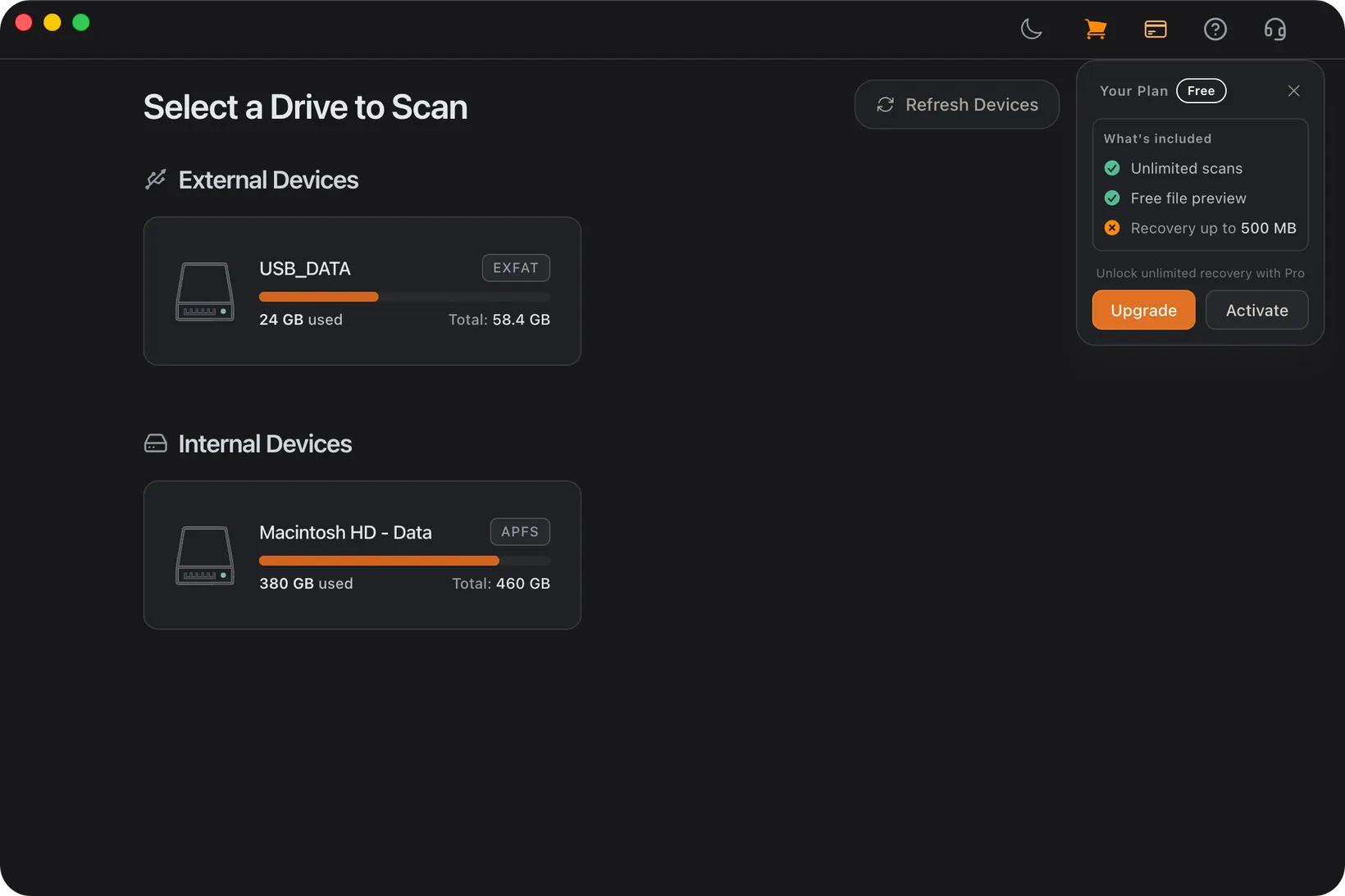
The modern Mac file system on internal and external SSDs. Refindo handles deleted, formatted, erased, disappeared, and unmounted-volume cases when the device is readable. Encrypted APFS may need the correct password or unlock state.
Common devices: Mac volumes, external SSDs
Supported Recovery Scope
File-system support is the technical boundary for Refindo recovery. The drive still needs to be detectable and readable at the device level.
Supported devices
Supported file systems
Preview and recovery support
- Photos: preview JPG, PNG, TIFF, WEBP, HEIC, HEIF, AVIF, and DNG
- Camera RAW: preview and recover CR2, CR3, NEF, ARW, ORF, RW2, RAF, and DNG
- Documents: selected Word, Excel, PDF, text and common office files
- Video: common clips such as MP4, MOV, MKV, and AVI
- Other files can be recovered even when preview is not available
Not supported
- iPhone, Android, messages, contacts, or phone app data
- Cloud-only recovery from Google Drive, iCloud, OneDrive, or Google Photos
- Linux-only recovery workflows
- NAS, RAID, server, VMware, SQL, or enterprise database recovery
- Hardware repair for clicking, beeping, dead, or incorrectly sized drives
Recovery Safety Rules
Scan before repairing, formatting, initializing, or running tools like CHKDSK and First Aid. Repair tools write to the source.
Recover to a different drive or partition. Saving results back to the source can overwrite files still waiting to be recovered.
Stop when hardware symptoms appear: clicking, grinding, repeated disconnects, wrong capacity, or I/O errors call for a lab, not repeated scans.
Frequently Asked Questions
Which file systems does Refindo support?
Refindo supports NTFS, FAT32, exFAT, and APFS on local Windows and Mac recovery workflows.
Does Refindo support Linux file systems?
No. Linux-only recovery workflows and Linux file systems are outside Refindo support.
Why do names disappear after Deep Scan?
When the file-system metadata is gone, Deep Scan rebuilds files from signatures. The content can come back even when original names and folders cannot.
Does file-system support mean hardware can be repaired?
No. File-system support means Refindo can scan readable media. Physically failing drives may need a hardware lab.
Start with a free scan
Scan and preview recoverable files first, then decide. Recovered files save to a separate drive.