
Hard Drive Recovery
Get files back from an internal or external HDD or SSD after a delete, a format, a RAW error, or a drive that won't read.
Written by the Refindo Recovery Team · Updated
Most people don't realize that the files on a hard drive usually outlast the moment the computer says they're gone. Deleting a file or formatting a partition doesn't scrub the contents off the platters or out of the NAND. It just clears the entry that says where they live, and the data stays put until something new gets written over it. So as long as Windows or macOS can still see the HDD or SSD, Refindo can scan it, show you exactly which files come back, and save them somewhere safe.
Quick answer
You can usually recover files from an HDD or SSD after a delete, a format, a RAW error, or an unreadable drive, as long as the computer still detects it. Deleting or formatting only clears the entry pointing to the data, not the data itself, so scan the drive and recover to a different disk before anything overwrites it.
What this covers
- For deleted files, formatted partitions, RAW or unreadable HDD and SSD drives
- Works on internal system disks, secondary drives, and external HDD/SSD enclosures
- Supports NTFS, FAT32, exFAT, and APFS volumes on Windows 10/11 and macOS 12+
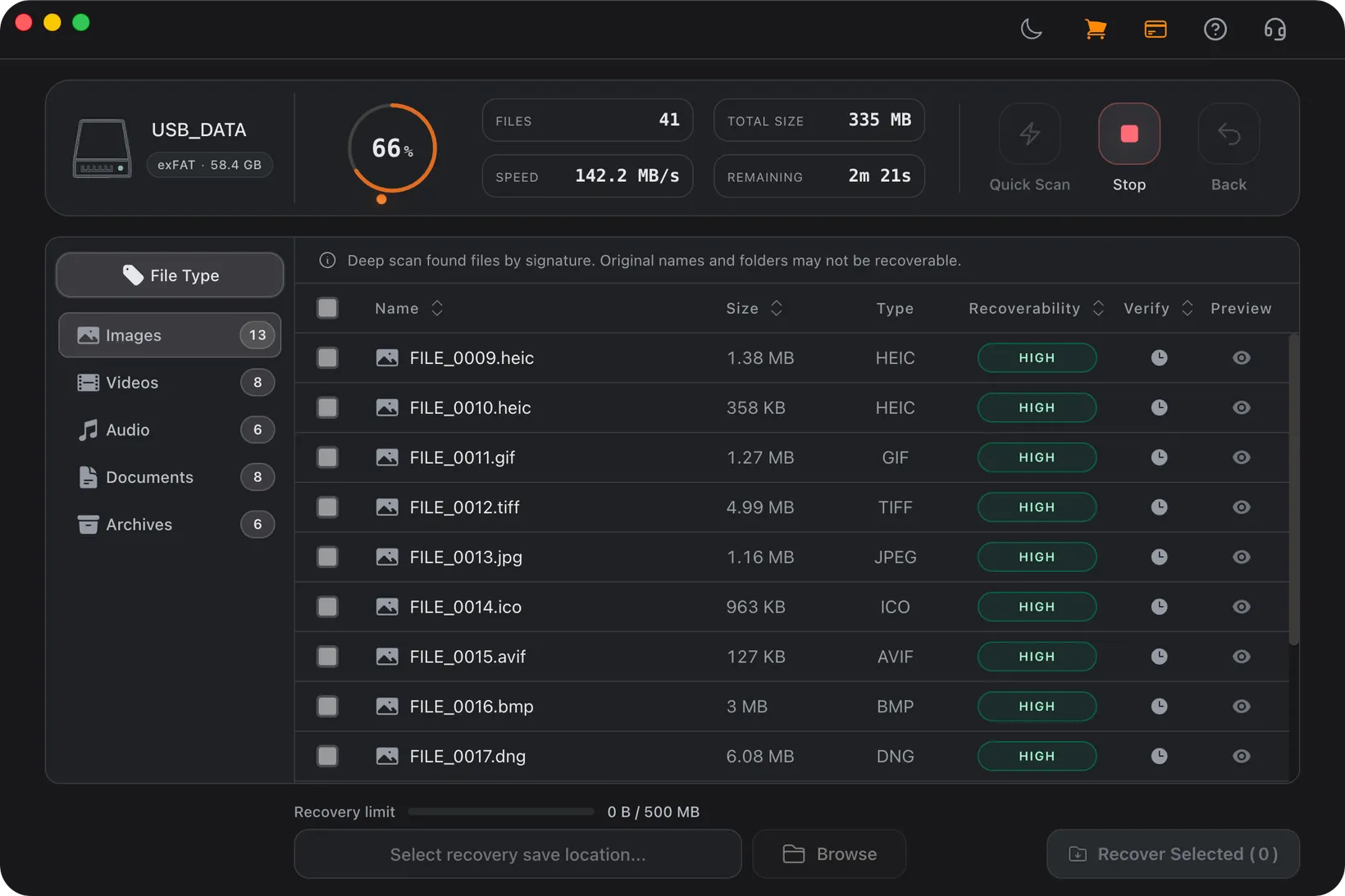
- Quick Scan for intact file systems, Deep Scan for formatted or damaged volumes
- Preview images, PDF, text, and selected Office files before you recover anything
Learn the Recovery Limits First
Recovery Workflow
- Stop using the drive. No new files, no software installs, no format, no repair tools.
- Check that the drive still shows up in BIOS/UEFI, Disk Management, or Disk Utility before you scan.
- If it is your system disk, scan it from another computer (or a USB adapter) so the OS is not writing to it.
- Run Quick Scan first, then Deep Scan if the volume is formatted, RAW, unreadable, or Quick Scan misses things.
- Preview the files you actually need and recover them to a different drive than the one you are scanning.
Best Practices
- Treat the drive as read-only. Every write to it chips away at what you can still get back.
- Always recover to a separate disk, never onto the drive you are scanning.
- Glance at the drive’s SMART status. A failing drive should be imaged once, not scanned over and over.
- If it clicks, grinds, beeps, or reports a capacity that makes no sense, stop and call a hardware lab.
What actually happens when you delete or format
Deleting a file barely touches the file itself. What changes is the file system's index, the running list of where every file starts and how big it is. On NTFS that list is the Master File Table; other file systems keep their own version of the same thing. Your document, your photo, your video, they all stay exactly where they were on the disk. The system has simply stopped pointing at them and flagged the space as free for next time.
A quick format works the same way, just at a larger scale. It lays down a fresh, empty index over the old one without bothering to erase the gigabytes underneath. That is genuinely good news for recovery, and it is also why the first thing to do is stop using the drive. Every file you save, every program you install, every cache the browser quietly writes can land on the blocks that still hold what you lost. Wait too long and the drive overwrites itself.
- A delete or quick format rewrites the index, not the data behind it.
- Your files sit in unallocated space, fully readable, until new writes cover them.
- When recovery fails, it is almost always because the drive kept getting used.
HDDs and SSDs do not give you the same window
Spinning hard drives are forgiving. Deleted data can sit untouched for weeks or even months, because nothing clears those old blocks until fresh writes reach them. HDDs also tend to go slowly. You get slow reads, the occasional error, a bad sector count that keeps creeping up. None of that is good, but it does usually buy you time to pull the data off before the drive gets worse.
SSDs are the opposite after a deletion. With TRIM switched on, and it is on by default for most setups, the controller goes around wiping freed blocks in the background so it can reuse them quickly. Deleted files can be unrecoverable within minutes. SSDs also tend to fail all at once rather than limping along. The upshot: if you deleted something off an SSD, treat it as urgent, because there are no guarantees. A formatted or RAW SSD is a better bet, since in those cases the files were never individually marked free.
- HDD: deleted files often survive for months, and a rising bad sector count is your warning.
- SSD with TRIM: deleted files can vanish in minutes, so do not put it off.
- A formatted or RAW SSD usually recovers well. A single deleted file is the hard one.
A system drive is harder than a spare drive
If the drive you are worried about is a spare disk or an external, this is the easy case. Stop using it, scan it, and write the results to your main drive. Nothing is working against you, because the operating system is not constantly writing to the disk you care about.
Your system drive, the one Windows or macOS boots from, is a different situation. The OS writes to it all the time, even when the machine looks completely idle, so every minute it stays running is a minute it might be overwriting your files. The clean way to handle it is to take the drive off the write path: shut down, pull the drive out (or use a cheap USB adapter), hook it up to another computer as a second disk, and scan it from there. If that is not an option, at the very least do not install the recovery tool onto the drive you are scanning, and send every recovered file to external storage.
- Spare or external drive: stop, scan, recover to your main disk.
- System drive: recover it as a second disk on another machine if you can.
- Never install the recovery software onto the drive you are trying to recover.
Repair and recovery are not the same job
When people search for "hard drive repair," they usually want one of two things, and mixing up the order is how files get lost for good. If the point is to make the drive usable again, clearing a RAW error, fixing corruption, getting it to mount, the tools for that are CHKDSK, First Aid, format, and initialize. Every one of them does its work by writing new structures onto the drive. Run them before you have recovered anything and they can write straight over the files you were after.
So the order matters: recover first, repair second. Scan the drive while it is still untouched, copy out the files you need, and then let CHKDSK or a reformat make it usable again. There is one case where none of this applies. If the drive is physically failing, clicking, grinding, or dropping off the bus when it warms up, software cannot help and every restart risks killing a drive a lab could have saved. When you see those signs, the right call is to stop.
- Recover your files first, then run CHKDSK, First Aid, or a reformat.
- Repair and format tools write to the disk, so they are never a recovery step.
- Clicking or grinding is a hardware problem. Power it down and talk to a lab.
Match the Fix to What the Drive Is Doing
The drive works fine, but files are missing
The drive mounts and behaves normally, yet some files are gone, emptied from the bin, lost after a move, or wiped out by a transfer that died halfway. This is the best case to be in, and also the one where the clock is loudest, because you are still using the drive and every write puts the free blocks holding your data at risk. So stop saving to it. Quick Scan brings files back with their names and folders intact while the metadata is still around; Deep Scan digs further once those directory records are gone.
It wants to be formatted, or shows up as RAW
A drive that suddenly says "you need to format the disk," or that turns up as RAW, has a damaged or missing file system header. The data sitting underneath is usually fine. Whatever you do, do not format it to make the message go away, because that drops an empty structure right on top of the old one. Run a Deep Scan instead. It reads past the broken file system and rebuilds your files from their contents, and you save them elsewhere before letting any repair tool near the volume.
You can see the drive, but the volume won't open
When Disk Management or Disk Utility lists the drive but the volume refuses to open, the hardware is almost always alive and it is the file system that is broken. That is squarely what recovery software is good at. The mistake here is hammering away at it, retrying the mount, looping First Aid, clicking the initialize button, since each of those can overwrite something the scan needs. Take one read-only pass, get the files that matter, and save the repairs for afterward.
It clicks, grinds, or keeps dropping off
Clicking, grinding, beeping, disconnecting every few seconds, or reporting a size that is plainly wrong, these point to a mechanical or controller fault rather than a file system issue. No software fixes a dying drive, and every power cycle can cost you a little more. If it still reads at all, grab your most important folders first and do not push your luck. If it is clearly on its way out, stop scanning and let a hardware lab image it.
Frequently Asked Questions
Can I recover data from a hard drive that is not detected?
It depends on what "not detected" means. If the drive still shows up in the BIOS/UEFI, Disk Management, or Disk Utility, even without a working volume, recovery software can usually scan it. But if the firmware can't see it at all, or it clicks, beeps, or keeps spinning down, that's a hardware fault and scanning won't do anything.
Is HDD recovery different from SSD recovery?
The scan itself is identical, but your odds are not. On a spinning HDD, deleted data tends to hang around until new writes overwrite it, so you usually have a wide window. SSDs with TRIM are the opposite: the controller can wipe freed blocks within minutes of a delete, which makes recovering deleted files unreliable and very time-sensitive.
Should I run CHKDSK, First Aid, or reformat the drive first?
Not before you recover. Those tools fix a drive by writing fresh file system structures to it, and that can land right on top of the data you wanted back. Scan and preview first, get your files off, then run CHKDSK or reformat afterward if you still need the drive working.
Quick Scan or Deep Scan for a hard drive?
If the file system is still intact and you just deleted or lost some files, start with Quick Scan; it's faster and keeps your original folder names. Switch to Deep Scan for formatted, RAW, or unreadable drives, or whenever Quick Scan comes up short. Deep Scan ignores the broken file system and rebuilds files straight from their content.
Can I recover files back onto the same hard drive?
No, always save them to a different drive. Writing recovered files back onto the source can overwrite other data you haven't pulled off yet, including files still waiting in the scan results.
Where does hard drive recovery run?
Scanning, preview, and recovery all run on your computer, and recovered files are saved to another local destination you choose.
Start with a free scan
Check recoverable files first, then decide whether to proceed with recovery, and save results to a separate drive.