
APFS Recovery
Recover files from deleted, formatted, disappeared, greyed out, or unmounted APFS volumes on Mac before First Aid, erase, repair, or recreation.
Written by the Refindo Recovery Team · Updated
APFS recovery is time-sensitive because macOS can rewrite metadata during repairs, and SSD TRIM can clear deleted blocks quickly. If the source still appears in Disk Utility or System Information, preserve that state, scan before repairs, preview what is recoverable, and save restored files somewhere else. This is especially important for external APFS drives that are visible but will not mount.
Quick Answer
- Best first move for APFS recovery: stop writing to the APFS source and scan before repairs.
- If Disk Utility still sees the device, container, or greyed-out volume, recovery is often still worth checking.
- Use Quick Scan when APFS metadata may still exist; use Deep Scan when names, folders, or volumes are incomplete.
- Recover to a different drive or volume. Never save recovered files back to the APFS source.
- Treat SSD TRIM and FileVault metadata as time-sensitive limits.
APFS Recovery Workflow
- Stop writing to the APFS source volume and avoid First Aid, erase, or recreation.
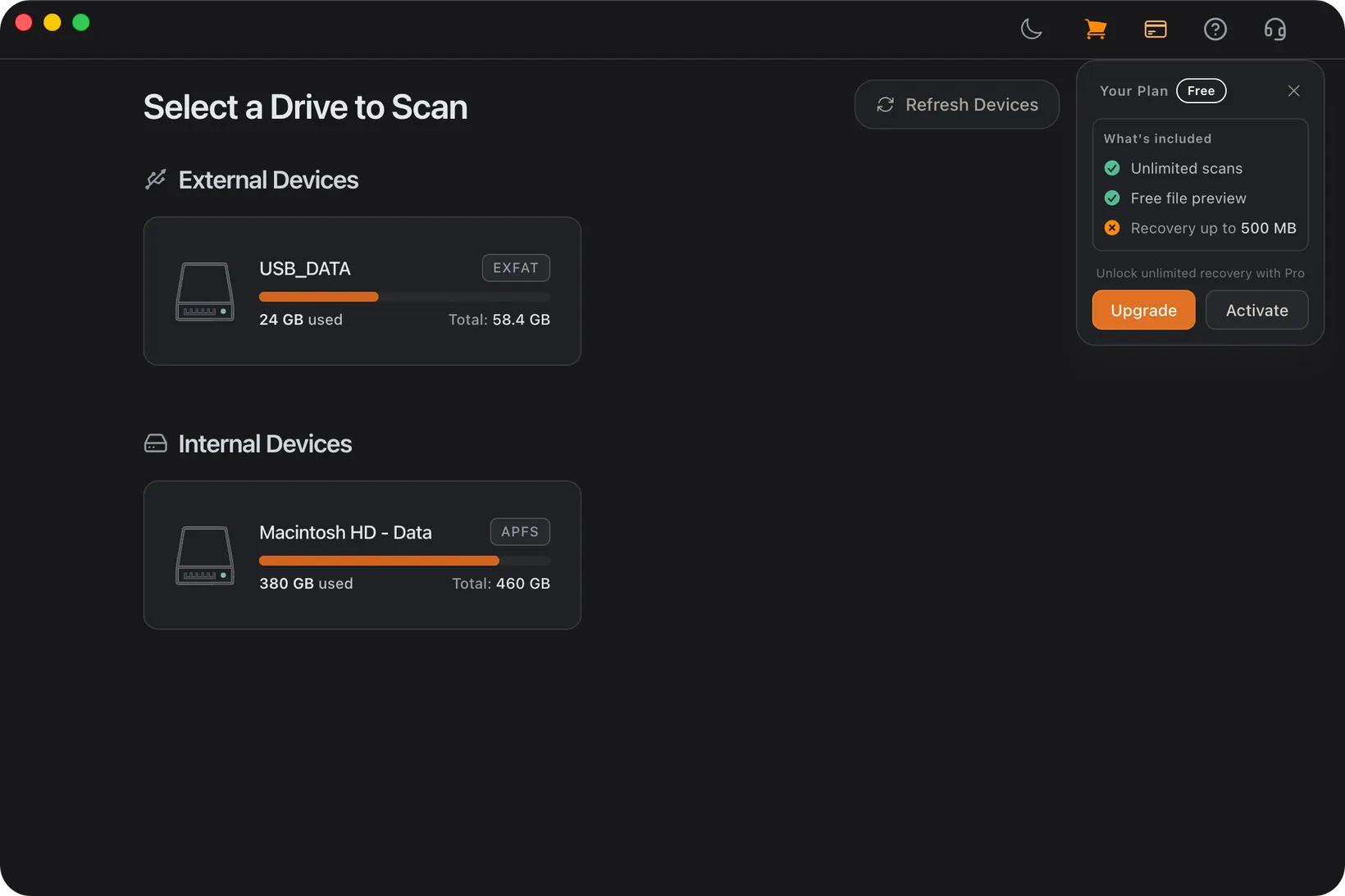
- Select the detectable APFS device, container, or volume, depending on what macOS still shows, and run Quick Scan first.
- Use Deep Scan for deleted volumes, formatted APFS drives, unreadable volumes, or incomplete metadata.
- Preview candidates and select files to recover.
- Recover files to a different destination drive.
What APFS recovery can handle
APFS recovery depends on the current state of the device, container, volume metadata, snapshots, encryption, and SSD TRIM behavior. A missing volume isn't always the same as a dead device: macOS may still detect the physical disk or APFS container even when Finder can't mount the volume.
Refindo helps when the source is still detectable and readable enough to scan. That covers deleted APFS volumes, formatted APFS drives, unreadable volumes, and cases where Quick Scan can still use the remaining metadata while Deep Scan looks for file content once directory records are incomplete.
Before you run First Aid or erase the disk
If the files matter, scan first. First Aid, erase, initialize, recreate volume, and partition repair can all rewrite APFS metadata that might still help recovery. Those tools are built to make a file system consistent, not to preserve every recoverable record.
If Disk Utility shows the device, container, or greyed-out volume, preserve that state. Scan it before trying repeated mount attempts or repair loops, then recover important files to a separate destination.
APFS volume not mounting on Mac
An APFS volume that appears in Disk Utility but will not mount is one of the strongest software-recovery signals: macOS can still see enough of the device to identify the storage layer, but it cannot trust the volume metadata enough to open it in Finder.
The same rule applies when an APFS external drive will not mount. Do not use Mount, First Aid, Erase, or force-mount commands as the first move. Scan the current disk state, preview the files, and recover them to another drive before you try to make the APFS volume usable again.
Device, container, and volume states
APFS stores volumes inside containers. Recovery starts by identifying which layer macOS still detects: the physical device, the APFS container, or the individual volume.
If the device appears but the volume disappeared, scan before recreating it. If the container appears but volumes are missing, avoid container repair until after recovery. If the volume is present but not mounting, scan before repeated First Aid attempts.
TRIM, snapshots, and deleted files
APFS on SSDs is sensitive to TRIM and background cleanup. Some deleted file metadata may stick around, but the underlying data blocks can disappear fast once the SSD processes the deletion or format.
Stop using the source APFS volume the moment you lose data. Don't install apps, download files, run updates, export, or import photos to the same disk. Snapshots help in some cases, but macOS prunes them on its own, so don't count on one being there.
Encrypted APFS and FileVault
Encrypted APFS recovery depends on whether the volume can still be unlocked and whether the wrapped encryption keys remain intact in the volume metadata.
Keep the password or recovery key available before scanning encrypted volumes. If encryption key records are damaged, file content cannot be decrypted by software recovery. Do not erase or recreate encrypted volumes before checking whether they can still unlock.
Choose the Right APFS Recovery Path
APFS volume disappeared
If an APFS volume disappeared but the device or container still shows up, don't recreate the volume first. Scan the current APFS container state so the remaining volume records, snapshots, and file data can be inspected before anything overwrites them.
APFS volume not mounting or unreadable
If the volume exists but will not mount, repeated First Aid or force-mount attempts can modify metadata. The same caution applies to APFS external drives that appear in Disk Utility but not Finder. Scan first, then recover selected files to another destination before attempting repairs.
Formatted APFS drive
A quick erase may leave some file content behind, but APFS metadata and SSD TRIM can reduce recovery quality quickly. Stop using the drive and run a scan before creating new volumes or copying new files.
FileVault or encrypted APFS drive
Encrypted APFS recovery requires unlockable encryption metadata. If the volume can still unlock, scan the unlocked view. If key metadata is damaged, knowing the password may not be enough.
Frequently Asked Questions
Does Refindo support APFS recovery on macOS?
Yes. Refindo supports APFS recovery workflows on macOS 12+ for detectable APFS devices, containers, and volumes.
Can I recover files from an APFS volume that disappeared or will not mount?
Often, yes, if the APFS device or container is still detectable and the data blocks have not been overwritten or cleared. Scan before erasing, recreating, or repairing APFS structures.
Should I run First Aid before APFS recovery?
If the files matter, scan first. First Aid can rewrite APFS metadata, replay state, or remove damaged records that may still help recovery.
Can I recover an APFS external drive that is greyed out?
Often, yes, if Disk Utility still detects the device or APFS container. A greyed-out volume means macOS cannot mount it, but a disk-level scan may still read the current state before repair changes it.
Does APFS TRIM affect deleted file recovery?
Yes. On SSDs, TRIM can clear deleted blocks quickly. Stop using the APFS source volume as soon as possible and recover files to another destination.
Is FileVault or encrypted APFS recovery possible?
Only if the volume can be unlocked and the required encryption metadata remains intact. If key records are damaged, recovery may not be possible even with the correct password.
Can APFS recovery be done on Windows?
APFS is a macOS file system. APFS recovery workflows are intended for supported macOS environments.
Ready to check the APFS source?
Run a read-only scan before repair attempts, preview the files that can be recovered, then save selected files to another drive.