
Recover Deleted Excel Files
Get back .xls and .xlsx spreadsheets after deletion, a crash, or a format.
Written by the Refindo Recovery Team · Updated
Losing a spreadsheet you spent hours on is its own kind of panic, but the file is often still recoverable. Excel AutoRecover keeps snapshots as you work, and a deleted .xlsx stays on the drive until new data overwrites it. Check Excel's recovery options first, then scan the drive, on Windows or Mac, to find spreadsheets lost to a deletion, a crash, or a format.
Quick answer
A deleted, crashed, or formatted-away .xls or .xlsx is usually still recoverable. Check Excel's AutoRecover snapshots first, then scan the drive on Windows or Mac, since a deleted file stays on the disk until new data overwrites it. Recover to a different location.
What this covers
- Recover deleted .xls and .xlsx spreadsheets
- Find files after an emptied Recycle Bin or Trash
- Scan NTFS, exFAT, FAT32, and APFS volumes
- Works on Windows 10/11 and macOS 12+
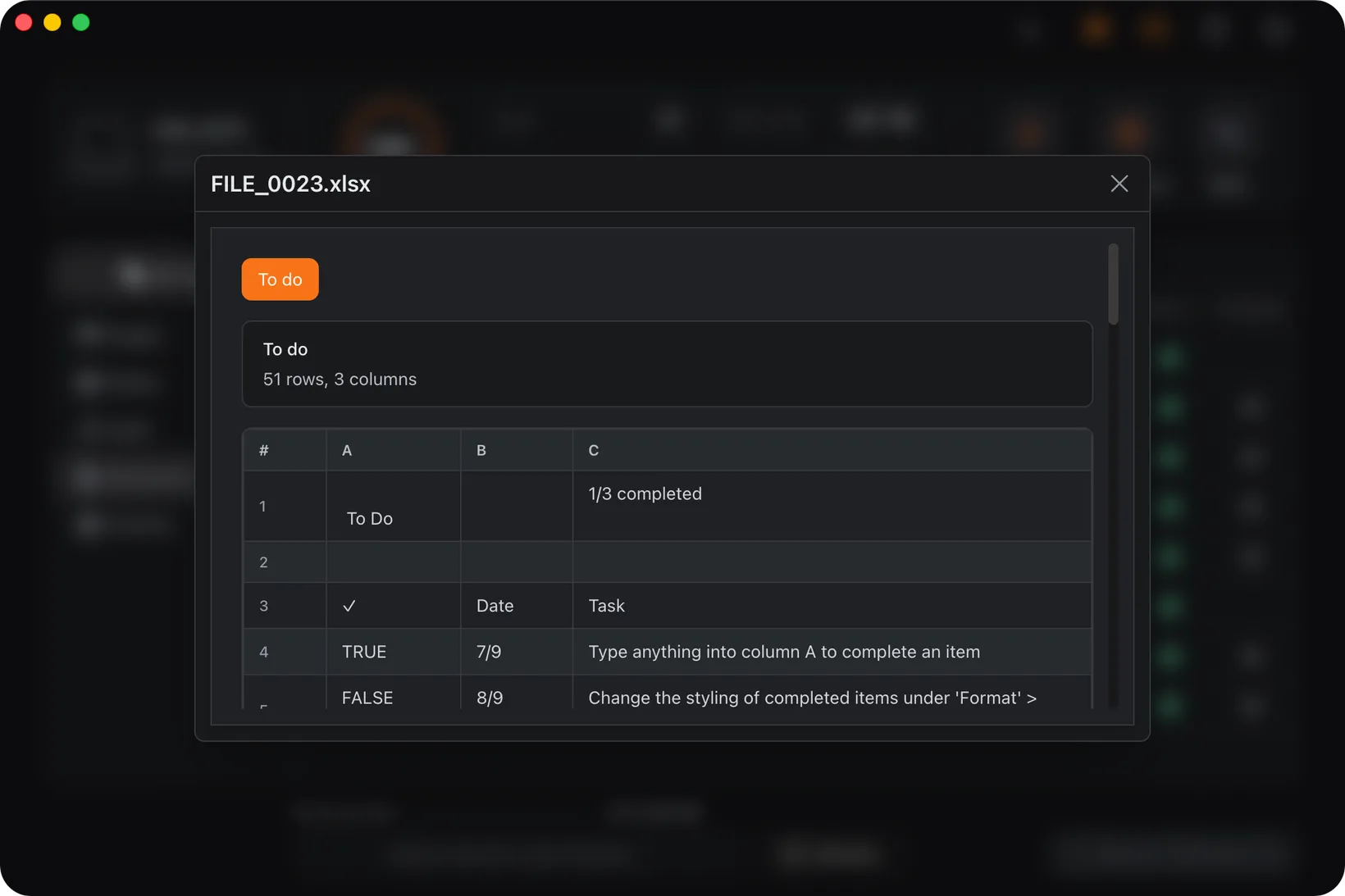
- Preview spreadsheets before recovery
- Quick Scan for recent loss, Deep Scan for formatted drives
Recovery Workflow
- Check Excel AutoRecover and Recover Unsaved Workbooks first.
- Stop writing new files to the drive that held the spreadsheet.
- Open Refindo and select that drive.
- Run Quick Scan, then Deep Scan if the file is not found.
- Preview the spreadsheet, then recover it to a different drive.
Best Practices
- Look in AutoRecover and temp folders before scanning.
- Recover to a separate drive, not the source.
- Act quickly if the file was on an SSD subject to TRIM.
- Avoid installing recovery tools onto the same drive.
- Preview before recovery to confirm the spreadsheet is intact.
Exhaust Excel's own safety nets first
Before you scan a single sector, check whether Excel already has a copy. It saves AutoRecover snapshots every few minutes by default, and after a crash it usually offers them on the next launch. If you dismissed that prompt, the snapshots are still on disk where you can open them by hand. This is the fastest route back to an unsaved or crashed workbook, and it costs nothing.
If the workbook exists but opens corrupted, Excel has a second tool most people miss: in the Open dialog, choose the file, click the arrow next to the Open button, and pick Open and Repair. It can salvage a damaged file that otherwise throws an error. Only once these built-in options come up empty does it make sense to move to a drive scan.
- In Excel: File > Info > Manage Workbook > Recover Unsaved Workbooks.
- Windows AutoRecover: %AppData%\Microsoft\Excel.
- Mac AutoRecovery: ~/Library/Containers/com.microsoft.Excel.
- Use Open and Repair (in the Open dialog) for a damaged but present file.
How a deleted spreadsheet is found again
If the file was deleted and the Recycle Bin emptied, AutoRecover won't help. The workbook has to be found on the drive itself. When the file system records survive, a Quick Scan returns it with its original name and folder. When they're gone, after a format or heavy corruption, Deep Scan locates it by signature instead, reading the raw disk for the markers that identify a spreadsheet.
The format shapes the result. A modern .xlsx is actually a ZIP archive (it opens with the same PK header), so it carves back cleanly when the file sits in one contiguous run but can come back partial if it was fragmented, since a missing chunk of the archive can cost you whole sheets. Older .xls files use a distinct compound-file signature. In both cases signature recovery usually loses the original filename, so plan on identifying the workbook by its contents in the preview.
- A .xlsx file is a ZIP archive with a recognizable PK header.
- Older .xls files use a distinct compound-file signature.
- Contiguous workbooks carve cleanly; fragmented ones may lose sheets.
- Signature recovery usually drops the original file name.
Excel Recovery Guidance
Two different problems, two different fixes
It helps to be clear about which situation you're in, because the right tool differs. A workbook lost to a crash, or one you never saved, is an "unsaved" problem, and the answer lives inside Excel: AutoRecover and Recover Unsaved Workbooks. A file you deleted and cleared from the Recycle Bin is a "deleted" problem, and no amount of digging inside Excel will find it; that one comes back by scanning the drive it lived on. Working out which you're facing first saves you from scanning a disk when the file was sitting in AutoRecover all along.
Point the scan at the drive that held the file
A scan only finds what's on the disk you scan, so work out where the workbook actually lived. If it was on a shared external drive or a USB stick, scan that device directly. If it lived on your computer's system drive, the safest move is to stop using that machine and run the recovery from another drive. Every save, download, and update to the system disk competes for the freed space your deleted workbook is still sitting in, and on an SSD, TRIM can clear it within minutes.
Frequently Asked Questions
Can I recover an Excel file I closed without saving?
Often, yes. Excel AutoRecover keeps periodic snapshots while you work. In Excel, go to File > Info > Manage Workbook > Recover Unsaved Workbooks before assuming the file is lost.
Can deleted .xlsx files be recovered after emptying the Recycle Bin?
Usually, if you act before the space is reused. Emptying the Recycle Bin frees the space but does not erase the data, so a scan can recover the spreadsheet until new writes overwrite it.
How are Excel files recovered when the file name is gone?
A deep scan finds spreadsheets by signature. A modern .xlsx is a ZIP archive with a PK header; an older .xls uses a compound-file signature. The data is rebuilt from the raw disk even without directory records, though the original name is usually lost.
Where does Excel keep AutoRecover files?
On Windows, under %AppData%\Microsoft\Excel; on Mac, under ~/Library/Containers/com.microsoft.Excel. Checking these folders is the fastest path back to a crashed or unsaved workbook.
My spreadsheet opens but is corrupted. Can it be recovered?
Try Excel’s Open and Repair option (File > Open > the dropdown next to Open). If the file on disk is damaged, recovering an earlier copy from AutoRecover or a scan of the drive may return an intact version.
Start with a free scan
Check recoverable files first, then decide whether to proceed with recovery, and save results to a separate drive.