
Recover Deleted Word Documents
Get back .doc and .docx files after deletion, a crash, or a format.
Written by the Refindo Recovery Team · Updated
A lost Word document is rarely gone the moment it disappears. Word's own AutoRecover and temp files often hold a copy, and even a deleted .docx stays on the drive until new data overwrites it. Check Word's recovery options first, then scan the drive, on Windows or Mac, to find documents that a deletion, a crash, or a format left behind.
Quick answer
A deleted, crashed, or formatted-away .doc or .docx is usually still recoverable. Check Word's AutoRecover and temp files first, then scan the drive on Windows or Mac, since a deleted file stays on the disk until new data overwrites it. Recover to a different location.
What this covers
- Recover deleted .doc and .docx documents
- Find files after an emptied Recycle Bin or Trash
- Scan NTFS, exFAT, FAT32, and APFS volumes
- Works on Windows 10/11 and macOS 12+
- Preview document content before recovery
- Quick Scan for recent loss, Deep Scan for formatted drives
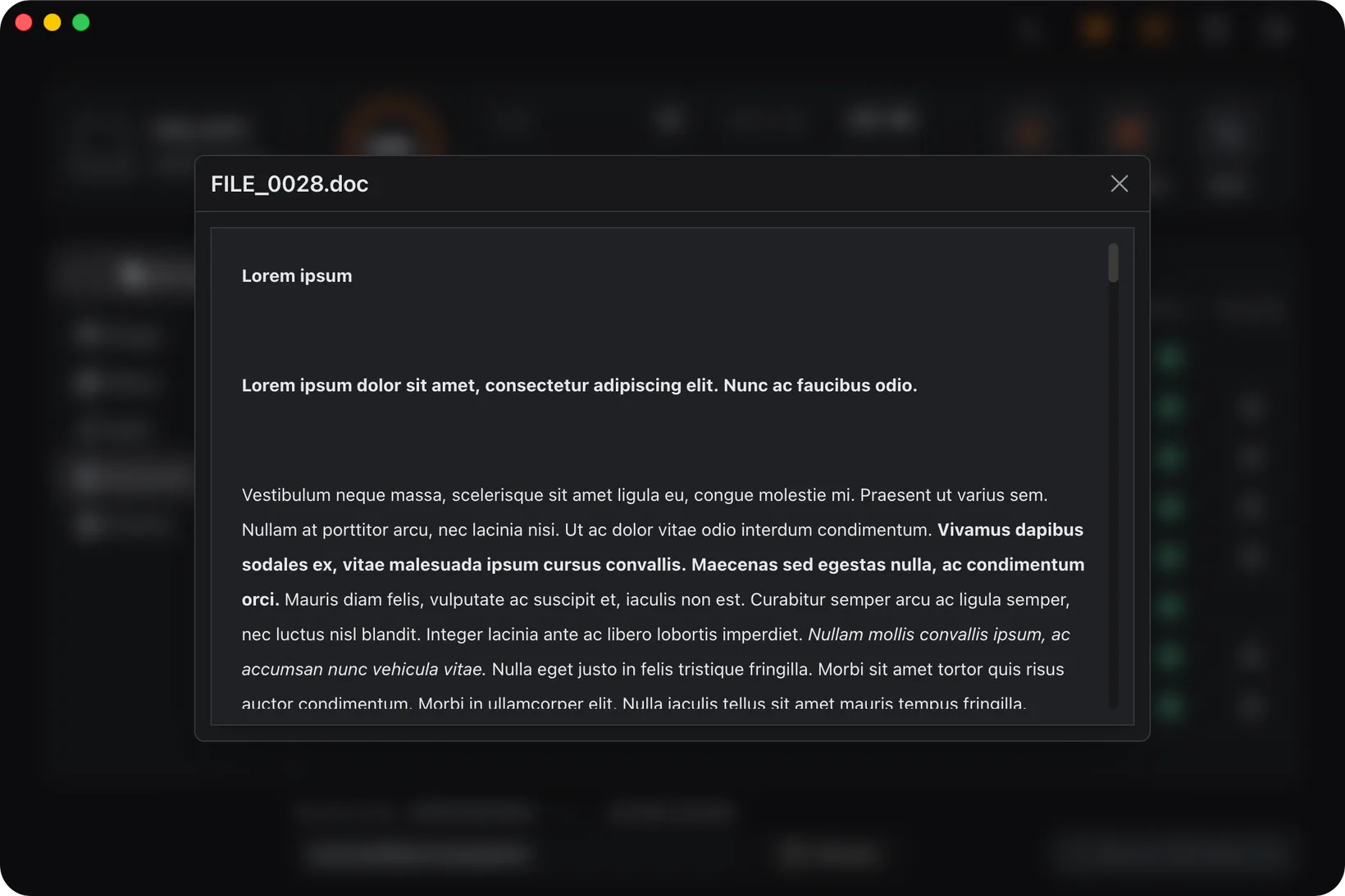
Recovery Workflow
- Check Word AutoRecover and Recover Unsaved Documents first.
- Stop writing new files to the drive that held the document.
- Open Refindo and select that drive.
- Run Quick Scan, then Deep Scan if the document is not found.
- Preview the document, then recover it to a different drive.
Best Practices
- Look in AutoRecover and temp folders before scanning.
- Recover to a separate drive, not the source.
- Act quickly if the document was on an SSD subject to TRIM.
- Avoid installing recovery tools onto the same drive.
- Preview before recovery to confirm the document is intact.
Word usually keeps a copy you have not found yet
Before you scan anything, assume Word already saved a version somewhere. It writes AutoRecover snapshots every few minutes and keeps hidden temporary working files while a document is open, and together they're the fastest way back to an unsaved or crashed file, no disk scan needed. After a crash Word usually surfaces these on the next launch, but if you closed that pane, the files are still on disk for you to open by hand.
There are two places to look. Inside Word, File > Info > Manage Document > Recover Unsaved Documents lists the snapshots Word is tracking. On the file system, the AutoRecover folder holds the rest, and the original document's folder often contains a hidden ~$ temp file that points at recent work. Check all of these before assuming the document is truly gone.
- In Word: File > Info > Manage Document > Recover Unsaved Documents.
- Windows AutoRecover: %AppData%\Microsoft\Word.
- Mac AutoRecovery: ~/Library/Containers/com.microsoft.Word.
- Look for hidden ~$ temp files in the original document folder.
Finding a deleted document on the drive
If the document was deleted and the Recycle Bin emptied, AutoRecover can't help. The file has to be found on the drive itself. While the file system records survive, a Quick Scan returns it with its original name and folder intact. Once they're gone, after a format or serious corruption, Deep Scan finds it by signature, reading the raw disk for the markers that identify a Word file.
The format shapes the outcome. A modern .docx is a ZIP archive and opens with a PK header, so it carves back cleanly when stored in one piece but can come back damaged if it was fragmented and part of the archive was overwritten. Older .doc files carry their own compound-file signature. Either way, signature recovery typically loses the original filename, so expect to recognize the document by its contents in preview rather than by its name.
- A .docx file is a ZIP archive with a recognizable PK header.
- Older .doc files use a distinct compound-file signature.
- Contiguous documents carve cleanly; heavily fragmented ones may not.
- Signature recovery usually drops the original file name.
Word Recovery Guidance
Decide whether it is unsaved or deleted
The most useful question to answer first is which kind of loss you're dealing with, because the fix is completely different. A document that vanished in a crash, or one you never saved, is an "unsaved" case, and you get it back from inside Word through AutoRecover and Recover Unsaved Documents. A document you deliberately deleted and cleared from the Recycle Bin is a "deleted" case, and Word knows nothing about it; that one is found only by scanning the drive it lived on. Sorting this out first stops you from scanning a disk for a file that was sitting in AutoRecover the whole time.
Scan the drive that held the document
A scan only finds files on the disk you actually scan, so figure out where the document lived. If it was on an external drive or a USB stick, scan that device directly. If it lived on your computer's system drive, stop using that machine and run the recovery from another drive. Ongoing saves, downloads, and updates to the system disk keep writing into the freed space your deleted document is sitting in, and on an SSD, TRIM can clear that space within minutes of deletion.
Frequently Asked Questions
Can I recover a Word document I never saved?
Possibly. Word keeps AutoRecover files (.asd) and temporary files while you work. Check File > Info > Manage Document > Recover Unsaved Documents, and the AutoRecover folder, before assuming the document is gone.
Can deleted .docx files be recovered after emptying the Recycle Bin?
Often, yes. Deleting and emptying the Recycle Bin frees the space but doesn't erase the data. Until new writes reuse it, a scan can recover the document, so stop using the drive and scan promptly.
How does Word document recovery actually work?
If file system records survive, the document is recovered with its original name and folder. If not, a deep scan finds it by signature: modern .docx files are ZIP archives with a recognizable header, while older .doc files have their own signature.
Where does Word store AutoRecover and temp files?
On Windows, AutoRecover files live under %AppData%\Microsoft\Word and temp files in the document folder or %Temp%. On Mac, check the AutoRecovery folder under ~/Library/Containers/com.microsoft.Word. These are the first places to look before scanning.
Will I get the latest version of the document back?
Recovery returns the most recent copy still on the drive, which may be an AutoRecover snapshot rather than your final save. Preview recovered files before relying on them, and recover to a different drive.
Start with a free scan
Check recoverable files first, then decide whether to proceed with recovery, and save results to a separate drive.